

COACHINT: simple manual
For athletes and coaches who use the app. Short steps, one thing at a time.
COACHINT looks at your own training. It learns what is normal for you. Then it tells you, in plain words, what changed this week.
You don't install anything to use it. You open a link, like a web page.
[ORGANISER NAME] in this manual means the person who runs your group and gave you the link.
1. What you need
- A phone or a computer with a web browser.
- The link to COACHINT. [ORGANISER NAME] sends it to you.
- A way to sign in. One of these:
- a user name and a password you make yourself on the sign-in page, or
- a user name and a password from [ORGANISER NAME], or
- your Google account, if the sign-in page shows the Google button.
- Your training data. Section 4 shows how to bring it in.
Keep your password secret, like a house key.
2. Sign in the first time
- Open the link.
- Sign in:
- New here: press Create an account under the sign-in box. Pick a user name and a password (type it twice), then press Continue to the terms. If there is an Email (optional) box, you can give your email: open the link COACHINT sends you to confirm it. After the terms you may see Waiting for approval: the admin still has to let you in. Sign in again later.
- With a password: under Sign in, type your user name (your first name in small letters, like
marco) and your password. - With Google: press Sign in with Google and pick your account.
- The first time, you see the terms of use. They say what is kept about you and who sees it. Read them.
- Tick the two boxes. Then press I accept.
- Your page opens.
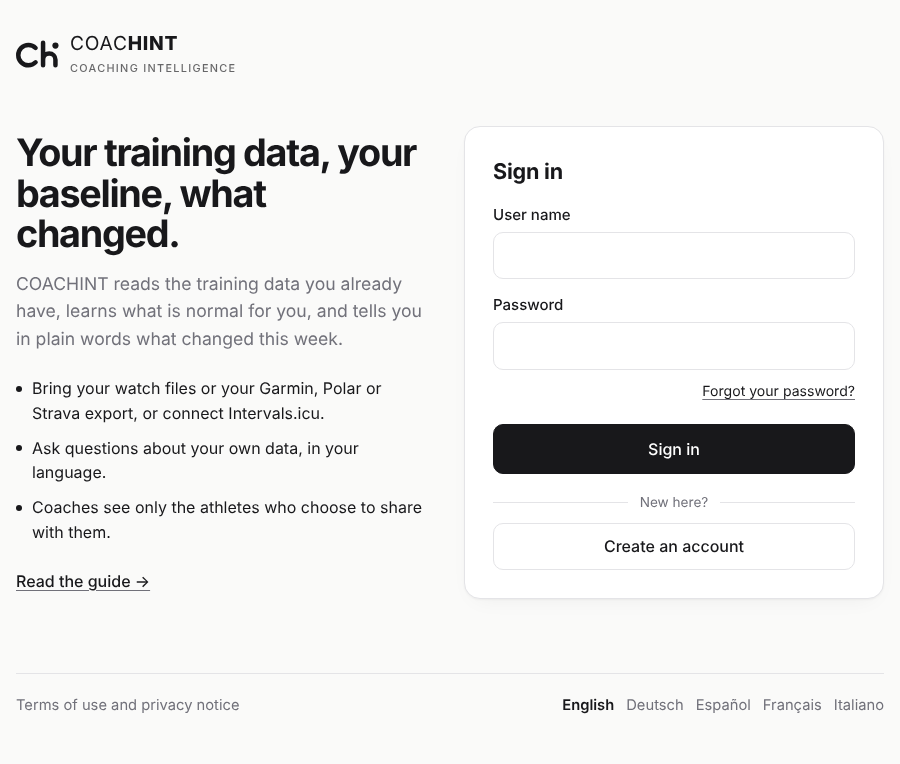
A line at the top says How to read this. Press it for a short tour: one part of the page lights up at a time. Press Next to go on. Press ✕ to hide the line. The guide stays in the Menu.
If the password does not work, check the user name first. Still stuck? Ask [ORGANISER NAME] for a new password.
3. Put COACHINT on your phone
COACHINT can sit on your phone's home screen, like an app. It is the same page, so nothing changes inside.
On Android (Chrome):
- Open the link and sign in.
- Open the Menu.
- Press Install app. Then confirm.
No Install app button? Use the browser's ⋮ menu and choose Install app or Add to Home screen.
On iPhone or iPad (Safari):
- Open the link in Safari and sign in.
- Press Share (the square with an arrow).
- Press Add to Home Screen, then Add.
Now open COACHINT from its black and white icon.
4. Bring in your training
COACHINT needs your training to tell you anything. A new page says No data until something arrives.
Pick the way that fits your watch. If you are not sure, ask [ORGANISER NAME].
| Your watch or app | What to do |
|---|---|
| Garmin | Ask Garmin for your data (below), then send it once. For daily updates, connect Garmin to Intervals.icu. |
| Polar | [ORGANISER NAME] sends you a Polar link. Accept it once, and your data comes every day. |
| Strava | Ask Strava for your archive (below) and send it. |
| Intervals.icu | Connect it yourself (below). New data comes every few minutes. |
| Any other app | Save an activity as a FIT, TCX or GPX file and import it yourself (below). |
Import files yourself:
- Open the Menu.
- Press Import.
- Press Choose files, or drag the files onto the dashed box.
- Wait for the message that says what was added.
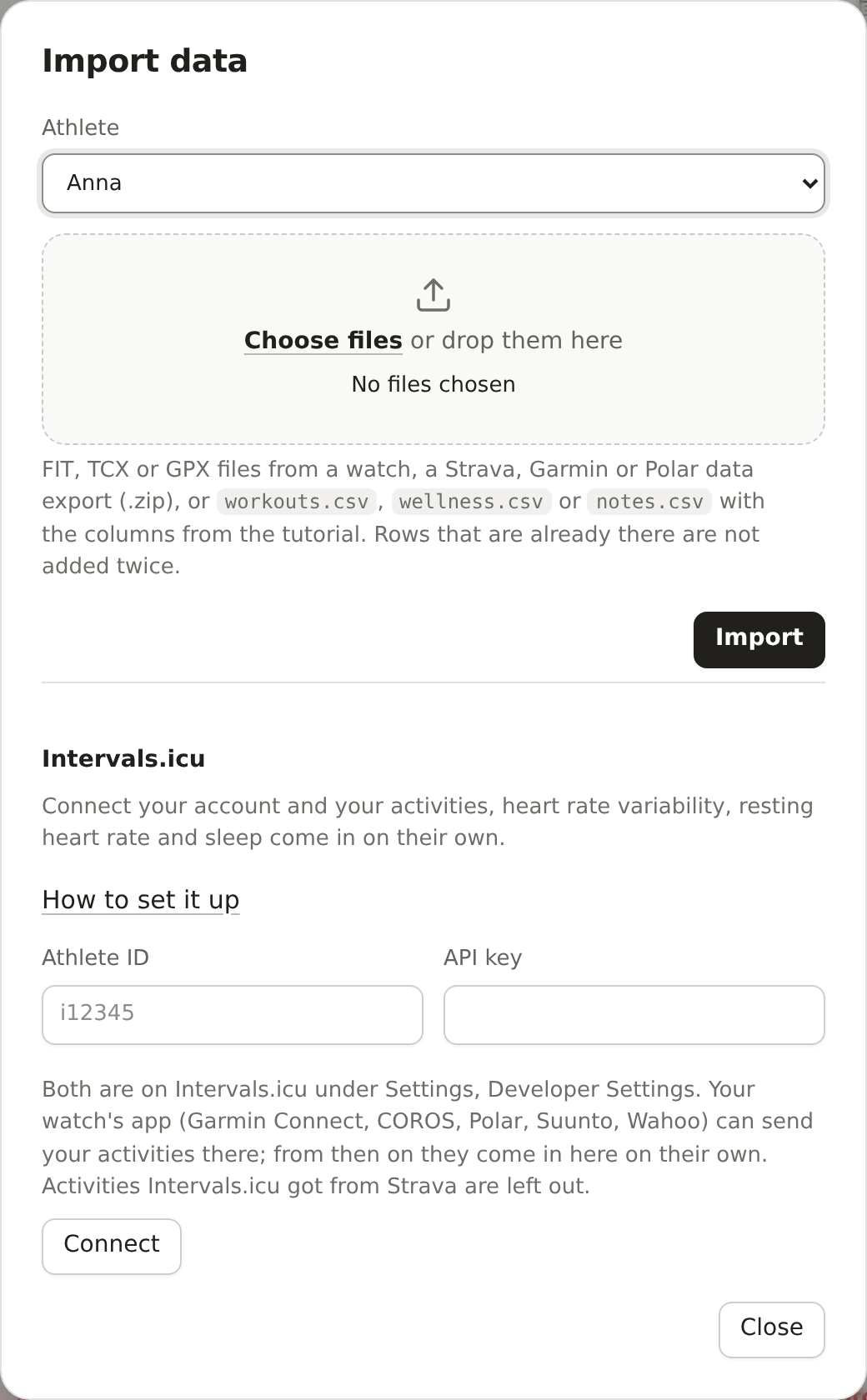
Each file must be smaller than 20 MB. A bigger file goes to [ORGANISER NAME]. The same workout is never counted twice.
Connect Intervals.icu:
- On intervals.icu, open Settings, then Developer Settings. Copy your athlete ID (it looks like i12345) and make an API key.
- In COACHINT, open the Menu and press Import.
- Under Intervals.icu, fill in Athlete ID and API key.
- Press Connect. Wait for the message that says what was imported.
Not sure? Press How to set it up under Intervals.icu: it shows each step on the screen.
New data then comes every few minutes. Sync now brings it at once. Disconnect stops it.
Ask Garmin for your data: on garmin.com, open your account, then Data Management, Export Your Data, Request Data Export. Garmin emails you a link to a .zip file. It can take a few hours.
Ask Strava for your archive: on strava.com, open Settings, My Account, Download or Delete Your Account, Request your archive. Strava emails you a .zip file.
Send a big .zip to [ORGANISER NAME] in a private way (a shared folder or a file link), never in a group chat.
At first your page says Learning. COACHINT needs about 5 weeks of training to know what is normal for you. An older export fills that gap at once.
5. Add a workout by hand
Did you train without your watch? Add the workout yourself.
- Open Activities this week.
- Press Add activity.
- Pick the sport: Run, Trail run, Walk, Hike, Swim, Ride, Strength, HIIT or Other.
- Fill in the day, the start time and how long it lasted.
- Fill in what the form asks for that sport, like the distance. You can also add the Equipment you used, the Weather and the Workout your coach gave you. Press Enter for a new line.
- Pick how hard it felt in Effort (RPE 1–10): 1 is very easy, 10 is all out. You can type your heart rate too.
- Press Add activity.
Set your usual equipment: open Menu, Account and type it under Default equipment, one box per sport. A new activity of that sport starts with it.
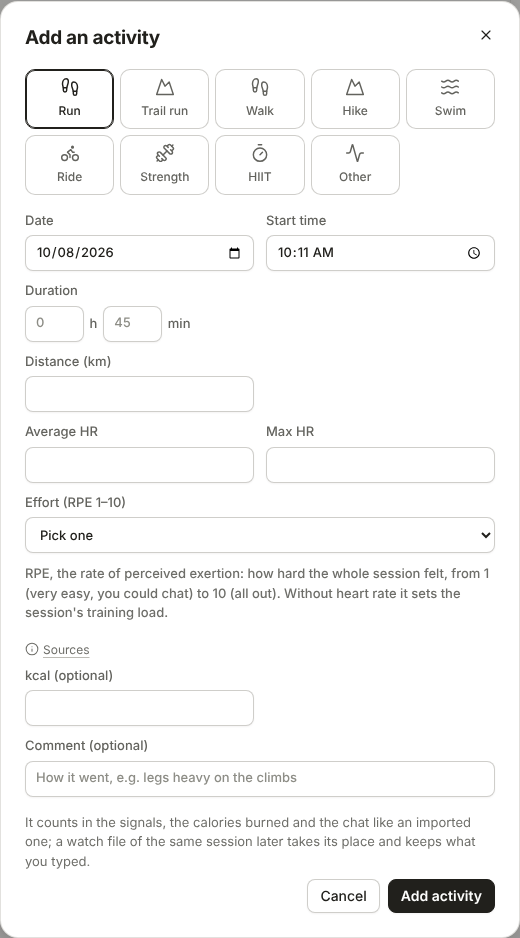
The workout now counts like one from a watch. Its row says added by hand. Press the pencil at the end of its row to change it, or the bin to take it away (the same buttons are under Details).
If a watch file of the same workout comes later, it takes the place of what you typed and keeps your effort and comment.
6. Fix a workout
Sometimes a watch gets it wrong. For example, it kept running in the car.
- Open Activities this week.
- Press Details under the workout.
- Press Edit.
- Change the numbers that are wrong.
- Press Save changes.
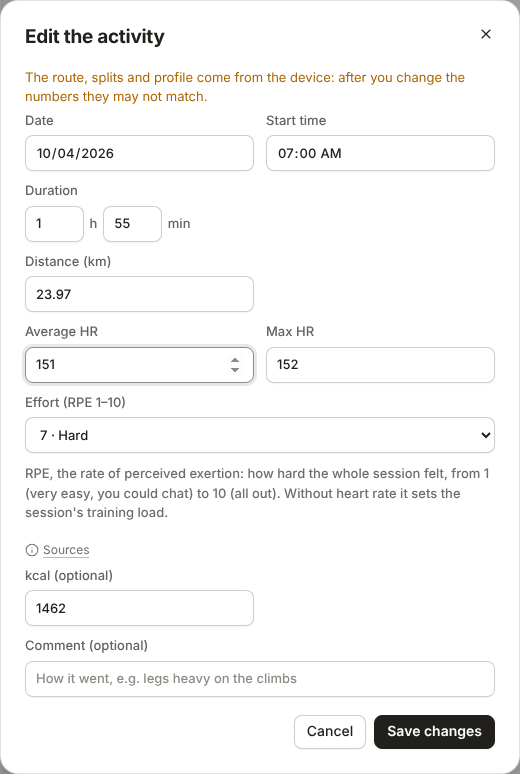
The row now says edited by hand. The route still comes from the watch, so a small warning says it may not match your numbers. Undo my edits brings the watch's numbers back.
A workout that should not count at all, like one the watch recorded twice:
- Press Details under the workout.
- Press Remove this activity, then OK.
It moves to Removed by you at the bottom of the tile and stops counting. A new sync does not bring it back. Bring back puts it back.
7. Add your races
Tell COACHINT which races you are training for. The next one shows as a countdown at the top of your page.
- Open the Races and events tile. If you don't see it, open Menu, Account and tick it under Tiles on the page.
- Type part of a race's name, like Florence Marathon, and press Search.
- Press Use next to the right race. The form fills itself in.
- Check the date. Pick how much the race matters: A is the big goal of the season, B is important, C is a training race.
- Press Add event.
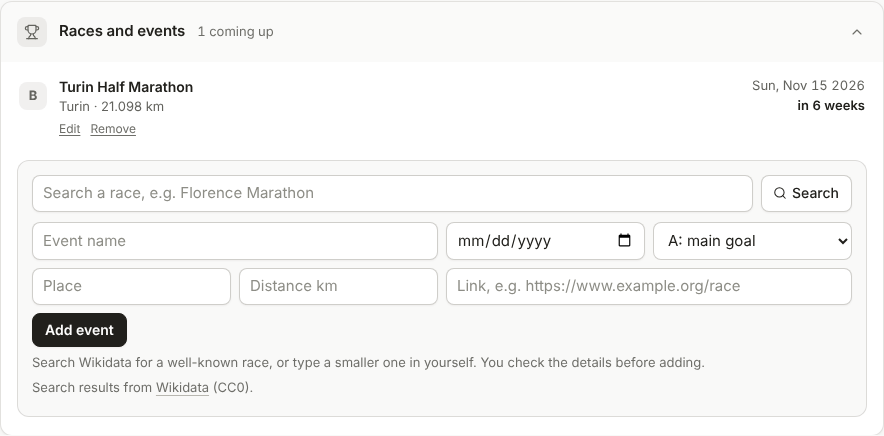
A small local race may not be found. Then type its name and date yourself, and press Add event. Edit and Remove change or take away a race.
8. Read your page
Your page shows one week: when you open it, the week up to today, even if nothing is recorded in it yet. Look at it from top to bottom.
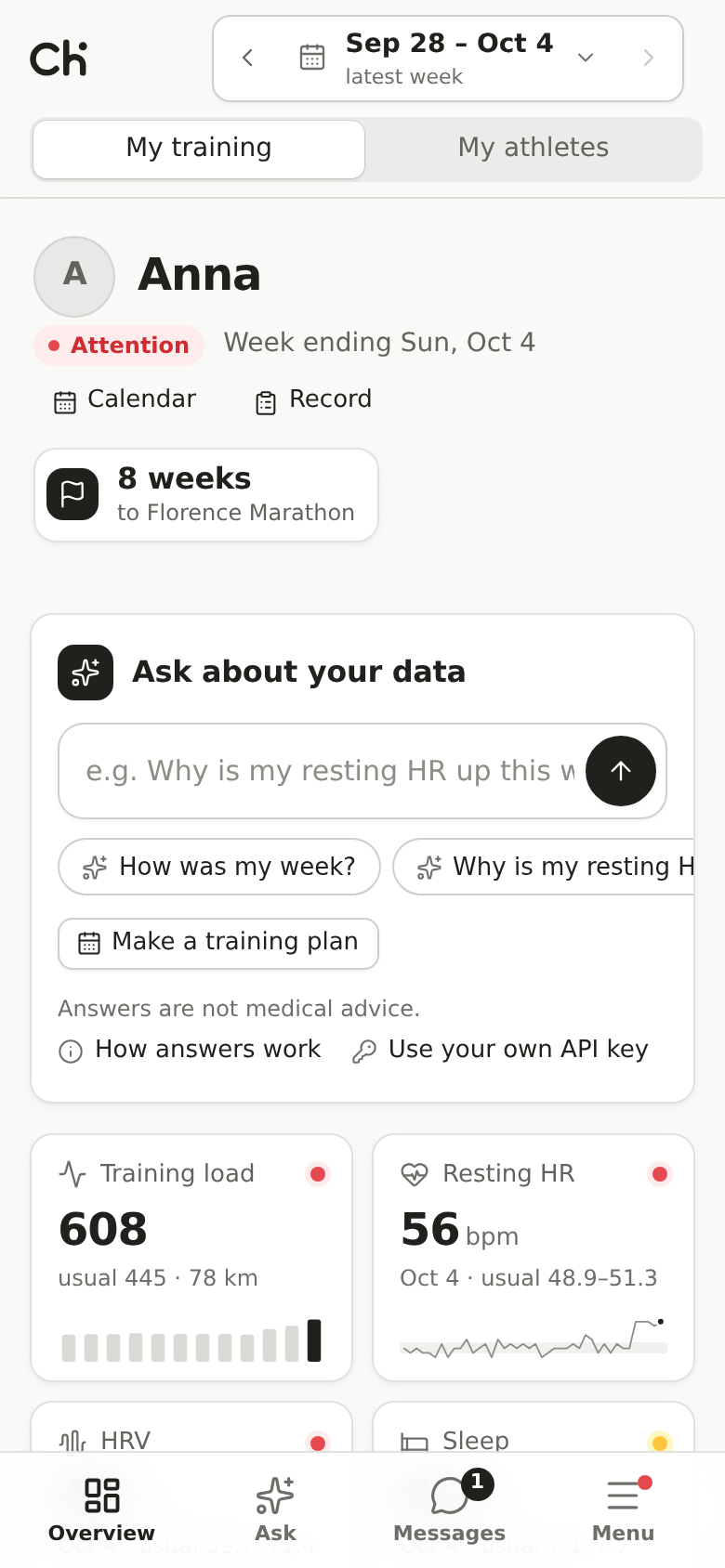
- Your name and a label. The label tells you how the week looks:
- Stable: nothing unusual.
- Monitor: something is worth a look.
- Attention: something needs a closer look.
- Ask about your data: the chat (section 9).
- Four numbers: Training load, Resting HR, HRV and Sleep. Each one shows this week and your usual range. Press a number to see its chart.
- This week: the signals. Each one says what happened, compared with what. For example: "Load this week is +37% vs your usual."
- More boxes, called tiles: Load and recovery, Activities this week, Races and events, Notes, Food and calories, Digest as sent and Past digests. Press a tile's title to open or close it. Expand all and Collapse all, above the tiles, open or close them all. To put the tiles in your own order, drag one by the dots at the left of its title (or select the dots and use the arrow keys); Usual order puts them back. Races and events and Past digests start hidden: show them, or hide others, in Menu, Account, Tiles on the page.
Colours always mean the same thing:
| You see | It means |
|---|---|
| Red triangle | Watch: look closely. |
| Yellow eye | Keep an eye on: worth a look. |
| Green tick | Going well. |
Everything else is black, white and grey.
Look at another week:
- Press ← or → in the top bar to go back or forward one week.
- Press the week itself to pick one from a calendar.
- Press Latest to come back to this week.
See a workout's route: open Activities this week and press Route & splits under a workout. You see the route, your pace over the distance and each kilometre. Workouts from a watch file have a route; typed ones don't.
See all your activities and races on a calendar: press Calendar under your name. It shows a month; Week shows one week. On a phone, tap a day to list what is on it; ← and → move it. Press an activity to open its details, or a race to see it. Press a day to add an activity or a race on it: the date is already filled in.
COACHINT compares you only with yourself. It is not a doctor. If pain or illness goes on, see a doctor or a physiotherapist.
9. Ask a question
The chat is right under your name.
- Press one of the suggested questions, or type your own. For example: "How did I sleep this week?"
- Press Ask.
- Read the answer.
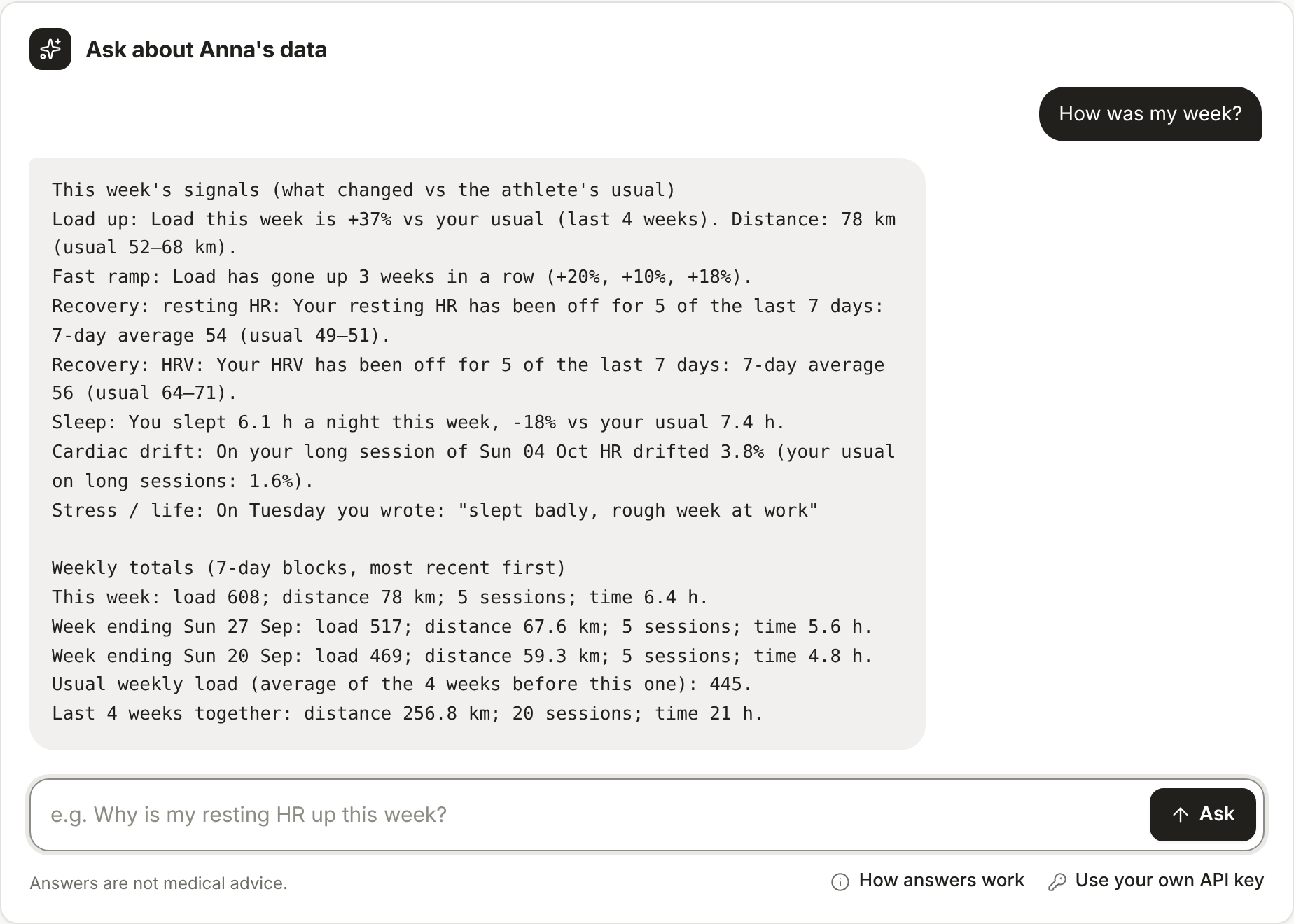
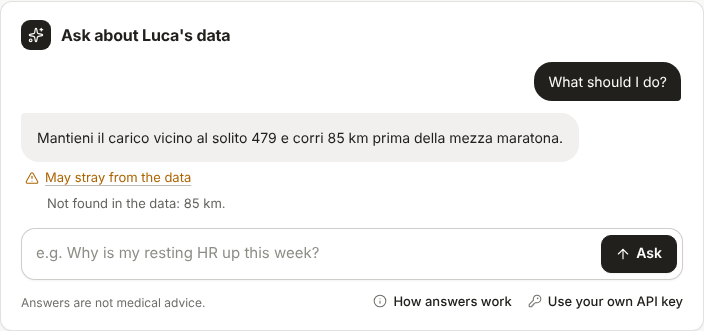
You can ask in any language. The answer comes in the language you picked in the menu, unless you clearly write in another one. The answer uses only your data, up to the week you are looking at. COACHINT checks every number in the answer against your data. If a number is not in your data, an amber line says May stray from the data. Press it to see which numbers, and check them before you trust the answer. The answers are not medical advice.
Use your own API key (optional). If you have a key from Anthropic or OpenAI, the answers come from your own account and have no hourly limit:
- Press Use your own API key under the chat.
- Pick Anthropic or OpenAI.
- Paste your key. Press Save key. If the key is wrong, the box says so and nothing is saved.
Get a key. The key comes from the company that runs the model, not from COACHINT:
- Anthropic (Claude): go to console.anthropic.com, sign in, open Settings, then API Keys, and press Create Key. Add a little credit under Billing.
- OpenAI (GPT): go to platform.openai.com, sign in, open API keys, and press Create new secret key. Add a little credit under Billing.
A Claude or ChatGPT subscription doesn't include this: the key is billed separately, for the questions you ask.
Without a key, the chat still works, with up to 30 questions an hour and a number of questions a day (usually 10 for an athlete and 20 for a coach). When they run out, the chat says so: try again the next day, or add your own key.
Make a training plan. COACHINT can draft your next 1 to 12 weeks from your own data:
- Press Make a training plan under the chat (or Training plan in the calendar).
- Pick the Start day and how many weeks. If you like, write what you want, for example "4 sessions a week, a long run on Sunday".
- Press Make a draft.
- Change anything you like: the day, the sport, the minutes, the kilometres, the intervals, the notes. The bin removes a session; Add session adds one. To move a session, change its date, or drag it by its handle: it takes the day of the session below it. Undo takes back the last change. On a phone each session is one line: tap it to open its fields, tap it again to close them.
- Press Save to calendar. The planned sessions show in the calendar with a dashed border. They don't count as training until you do them.
Ready-made workouts: in the plan, press Standard workouts to see sessions tested in sports science. Pick a sport, then press Add to plan on the one you want. Change it like any other session.
Your own workouts: press the notebook button on a session to save it under My workouts. Next time, add it to a plan from there. To share one, pick who sees it next to it: your coaches, your connections or everyone. Workouts others share with you are under Shared with you: press Add to plan, or Copy to my workouts to change your own copy.
See if you followed it: in the calendar, a planned session you did has a tick; one you missed is crossed out. Under the calendar, Plan followed says how many sessions you did. Press a planned session to see which activity did it. If it picked the wrong one, choose another under Done by, or Not done.
A plan from your coach: when your coach sends you a plan, it shows at the top of your page. Press Open the plan, change anything you like, then press Save to calendar. Or press Decline, and nothing goes in your calendar.
To put the plan on your watch:
- Garmin: press Garmin workouts (.zip) and unzip it. Connect the watch to a computer with its cable. Copy the .fit files into the GARMIN/NewFiles folder on the watch. Unplug it: the sessions are under Training > Workouts.
- Polar: Polar watches don't take files of planned workouts. Press Calendar file (.ics) to put the plan in your phone's calendar, and set the sessions up as training targets in Polar Flow.
A plan is a suggestion from your data, not medical advice.
10. Write a note
A note says how you feel. COACHINT reads it. A note like "knee sore since km 8" becomes a signal.
- Open the Notes tile.
- Type your note.
- Pick the day.
- Press Add note.
The note shows up in your signals and in your daily message.
To change a note, press Edit under it, change the words and press Save. Remove takes it away. A note that is the comment of a workout has Open the activity instead: change it there.
11. Log what you eat (optional)
The Food and calories tile puts what you ate next to what your workouts burned.
- Open Food and calories.
- Type the food, the amount and the calories (kcal).
- Press Add food.
Shortcuts:
- Barcode: type the numbers under the barcode in Barcode digits and press Look up. On an Android phone, Scan a barcode reads it from a photo.
- Label: press Scan a label and take a sharp photo of the nutrition table. The form fills itself in.
Always check the numbers before you press Add food. Set Your weight (kg) to make the burned calories closer to yours.
Got something wrong? Press Edit next to the food, fix it in the form and press Save changes. Remove takes it away.
12. Your daily message
Every morning you can get a short message about your training, called the digest, on Telegram or by email. Tell [ORGANISER NAME] which one you want.
- Under each alert there are two buttons: Useful and Dismiss. Press one. It helps COACHINT learn what matters to you. Your page shows the same choice, wherever you pressed it.
- Every message is also on your page, in Past digests. Press Open this week to see that week. If you don't see it, tick it in Menu, Account, Tiles on the page.
- Delete this digest takes one out of that list. The Telegram or email message stays where it is.
13. Share with a coach or a group
Nobody sees your data unless you say yes. You decide on your Sharing page.
- Open the Menu.
- Press Sharing.
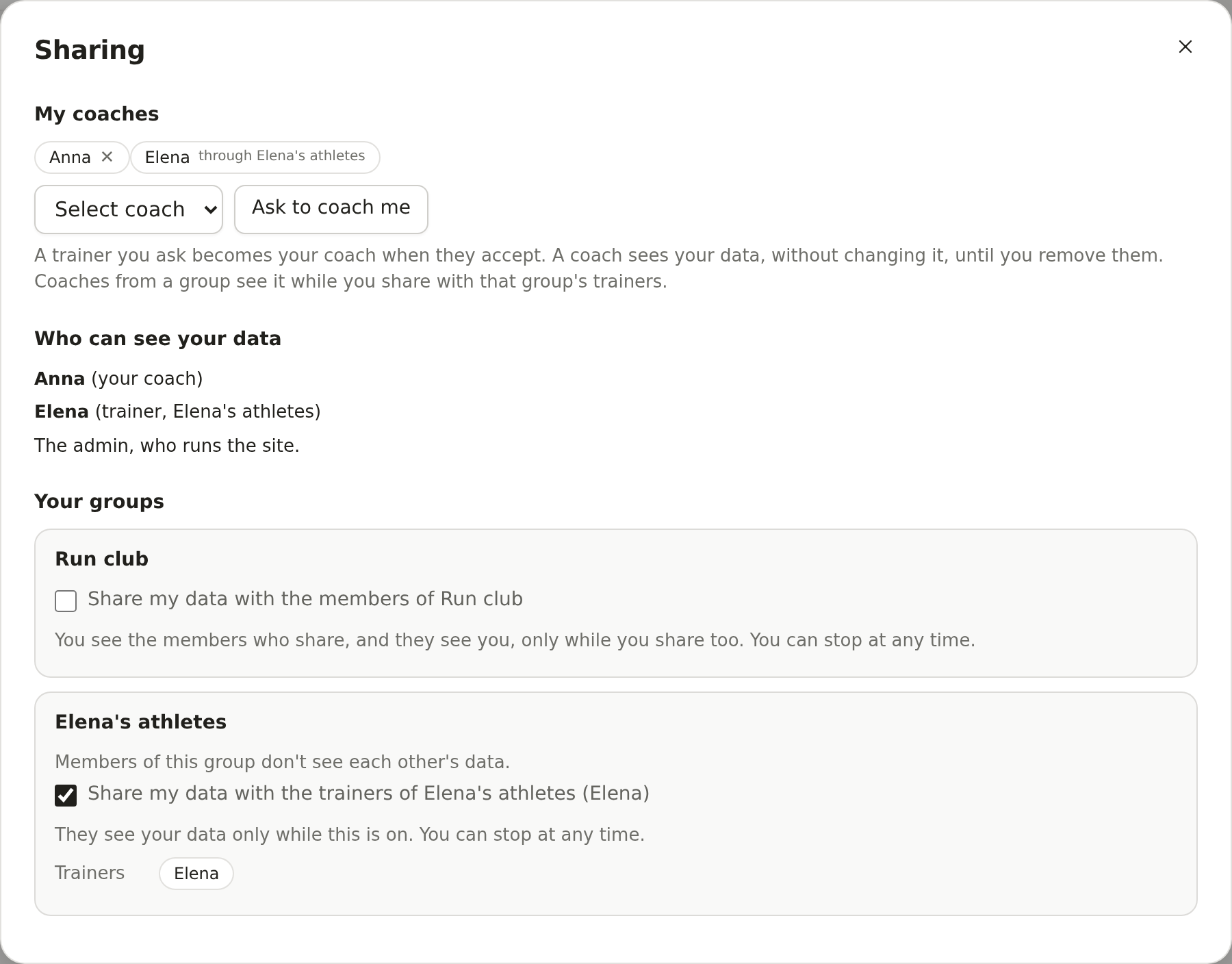
Ask a coach:
- Under My coaches, choose a name in Select coach.
- Press Ask to coach me.
When the coach accepts, they can see your data. They cannot change it. Press ✕ next to their name to stop sharing with them, or to take back a request they have not answered.
Find people and connect:
- Open the Menu and press People.
- Type a name, a sport or a place and press Search. You find only people who chose to be found.
- Press Ask to coach me, Offer to coach or Invite to group next to a person.
- They see your request under Waiting for you and press Accept or Decline.
To be found yourself, fill in Your profile, tick Discoverable and press Save profile. Others see your name, sport, place and one line about you, never your training. Suggestions shows people from your groups, your sport or your place. To start a group, type its name and press Make group, then invite people to it.
Share with a group: if you are in a group, its switches are on the same page. Turn a switch on to share with the group's coaches, or with the other members. Members see each other only when both say yes.
Write a message:
- Press Messages at the top of the page. On a phone it is in the bar at the bottom.
- Press a conversation, or pick a person under the list and press New message.
- Type and press Send.
Each of your groups has its own conversation. You can write to your coaches, the athletes you coach, and the people in your groups. Only the people in a conversation read it. A number next to Messages says how many you have not read.
Keep your athlete record:
- Open your page and press Record, next to Calendar.
- Under Medical history, Injuries, illness and breaks or Past results, press the add button. Fill in the form and press Add.
- Each part starts as Private: only you. Choose who reads it: Your coaches, and for past results also Your connections or Everyone on COACHINT. For medical history and injuries, the app asks you to agree first, and only your coaches can ever read them.
Choose Private: only you again to stop sharing at any time. Your chat reads the record to answer you; anyone else's chat reads only the parts that reach them. The record is not medical advice.
Show your activities and races to others:
- Open the Menu and press People.
- Under Who sees what you do, choose who sees Your activities and Your races and events: Private: only you, Your coaches, Your connections or Everyone on COACHINT.
- To see what your contacts share, open your page: the Feed tile is the last one. To hide it, untick Feed: what your contacts share under Tiles on the page, in Account.
Everything starts private. Others see the date, sport, time and distance of an activity, never your heart rate, notes or route. Everyone on COACHINT means people who are signed in and find your profile, so tick Discoverable too. Press a name in the Feed, or Bio on the People page, to open that person's Bio card: who they are, what they wrote about themselves and what they share with you. On an athlete's page, press Bio to see the same card with their sport, heart rates and next races. To write your own bio, open Account, write a few lines under Your bio, pick Who reads it and press Save. Under each item, press Clap to show appreciation, or Comment to read the comments and write one. You can remove your own comments, and any comment on what you share.
Notifications, report and block:
- Open the Menu and press Notifications to see who clapped for or commented on what you share, or asked to connect. A number next to it says how many are new.
- To report a comment or a message, press Report next to it. To report a person, press Report on their card on the People page. Write why if you like, and press Send report.
- To block someone, press Block on their card on the People page. They show under People you blocked, where Unblock undoes it.
Once blocked, you no longer write to each other, find each other, or see, clap for or comment on what the other shares. Blocking ends no coaching or group: remove a coach in Sharing, or leave the group. Also block them is ticked when you report. The site's admin reads only what you report. If you get the daily message by Telegram or email, notifications go there too, without what a comment or message says; untick the box under Notifications to stop it.
14. Your account
Open the Menu, then:
- Account: choose one of the twelve pictures, or Upload a photo. Your own API key is here too. Under Tiles on the page you pick which tiles your page shows. A hidden tile keeps its data.
- Body: your weight and height. Press Save weight and height. Your weight makes the burned calories closer to yours.
- Language: English, Italian, Spanish, French or German.
- Theme: Auto, Light or Dark.
- Sign out : leave the app on this device.
15. Take your data with you, or leave
On your Sharing page, at the bottom:
- Download my data gives you a file with everything COACHINT keeps about you.
- Withdraw consent and delete my account erases your account and all your data. The page asks you to type your id to confirm. It cannot be undone.
16. For coaches
A coach sees the athletes who chose them, and the athletes in the groups they follow who said yes.
Want to coach? If you use COACHINT as an athlete, open the Menu and press Coach other athletes, then Ask to coach. The admin sees your request and makes you a coach. Until then nothing changes. Withdraw the request takes it back.
- On the left (or under Athletes on a phone) is your list of athletes. The ones who need attention come first.
- Press an athlete to open their page. You read it like your own (section 8).
- On an athlete's page, the chat becomes the coach chat. Ask things like "How should I adjust next week?" Only you see this conversation. Start a new conversation clears it.
- Under it, Private notes is for what you want to remember about the athlete. Write it and press Save notes. Only you see it.
- If you also train, open the Menu and press Keep my own training. From then on the switch at the top shows My training (your own page) and My athletes.
- On an athlete's page, Make a training plan drafts a plan for them from their data. Change it, then download it (Garmin workouts (.zip) or Calendar file (.ics)) to give it to them. Or press Send to the athlete: the plan shows on their page, and they save it to their calendar or decline it.
- To start a plan on a later day, open the athlete's Calendar, press any day from today on, then Plan from this day. Days before today are grey and can't be picked.
- To send it as a message instead, press Send by email or Send by Telegram. It opens your own email or Telegram with the plan written in.
17. If something goes wrong
| Problem | What to do |
|---|---|
| The password does not work | Check the user name (small letters). Wait a moment after several tries. If you gave your email, press Forgot your password? and open the link COACHINT sends you. Or ask [ORGANISER NAME] for a new password. |
| My page says No data | Nothing has arrived yet. Do section 4. |
| My page says Learning | You have less than about 5 weeks of training in COACHINT. Wait, or send an older export. |
| Everything looks Stable | Check you are on the right week: press Latest. |
| Files must be under 20 MB | Send the file to [ORGANISER NAME]. |
| An export is refused | Send the .zip as it came, not unpacked. If it still fails, tell [ORGANISER NAME]. |
| No Install app button | On Android use the browser's ⋮ menu. On iPhone open the link in Safari and use Share, Add to Home Screen. |
| The chat says May stray from the data | A number in the answer is not in your data. Press the line to see which one, and check it. |
Need more detail? The full tutorial explains every screen.