

COACHINT: tutorial
Version 0.20 · October 2026 · for the PoC friends and coaches
[ORGANISER NAME] stands for the person who runs the trial: replace it before sharing this tutorial.
In one sentence: COACHINT reads an athlete's own training data, learns what is normal for them, and each week says what changed and why it matters. For the trial, each friend signs in to their own page, their data comes from their watch's export, Polar or Intervals.icu, and the digest arrives every morning on Telegram or by email.
Where to start:
- You are a friend in the trial: read sections 1 to 3, then 6 (how to send your data) and 8 (the daily digest).
- You want to run it on your computer, or you run the trial: start with Setup: install uv below.
- You run the trial (the admin): read everything; sections 6 to 10 have a part If you run the trial.
Setup: install uv
Only needed to run COACHINT on your own computer (section 2C) or to host it (section 9). Friends who use their own page in the browser can skip this.
COACHINT is built and run with uv, a single program that installs the right Python version and everything COACHINT needs. You don't need to install Python yourself. You also need git to download the code (on Windows, from https://git-scm.com; on macOS, run xcode-select --install if git is missing).
macOS (in Terminal):
curl -LsSf https://astral.sh/uv/install.sh | sh
With Homebrew you can run brew install uv instead.
Linux (in a terminal):
curl -LsSf https://astral.sh/uv/install.sh | sh
Windows (PowerShell):
powershell -ExecutionPolicy ByPass -c "irm https://astral.sh/uv/install.ps1 | iex"
Or, with winget: winget install --id=astral-sh.uv -e.
Then close and reopen the terminal so it finds the new command, and check it works:
uv --version
It prints a version number, for example uv 0.8.17. If it says the command is not found, open a new terminal window; on a server, run source ~/.local/bin/env once. To update uv later: uv self update (with Homebrew or winget, update it through those instead).
1. What you will see
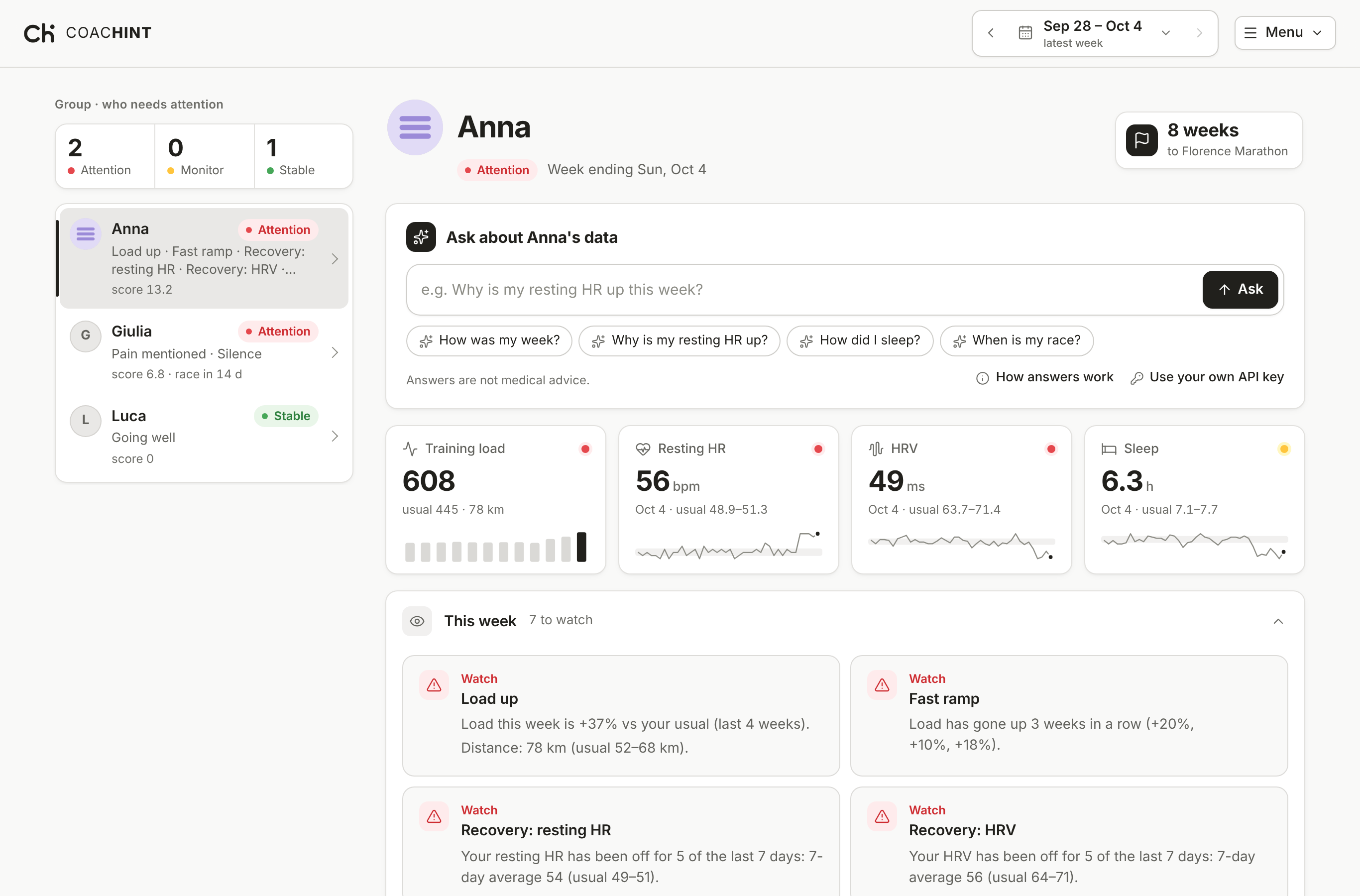
- On the left, the group is ranked by who needs attention first: Attention, Monitor or Stable. Only the admin sees the group: a friend sees only their own page (section 2).
- On the right, the selected athlete gets:
- Ask about your data, the chat, right under the name: ask anything about the week in your own words;
- this week's signals, each with the numbers behind it;
- Load and recovery: weekly training load, and resting heart rate, HRV or sleep, both against the athlete's own usual range;
- the week's activities, their notes, races and events, food and calories, the digest as it arrives on Telegram or by email, and the past digests (races and past digests are hidden at first: tick them in Account, Tiles on the page).
Each section is a tile: its title line says what is inside (5 activities · 78 km, 2 notes), and a tap on it opens or closes it. This week and Load and recovery start open; the page remembers what you open or close. Expand all and Collapse all, above the first tile, open or close them all at once. The dots at the left of a tile's title move it: drag them with the mouse or a finger, or select them and press the up and down arrows. The order stays with your account (in the browser for the admin and the online demo), and Usual order puts the tiles back. Moving tiles is a trial: it may go away if people don't use it.
Every number comes from the athlete's own history. Nothing is compared with generic norms, and nothing is a medical diagnosis.
2. Open the app
There are three ways in. Friends in the trial use the first one.
A. Your own page (friends in the trial)
[ORGANISER NAME] sends you, privately, a link, a user name (your first name, as in marco) and a password.
- Open the link. The browser asks for the user name and password: type the ones you received. The browser can remember them.
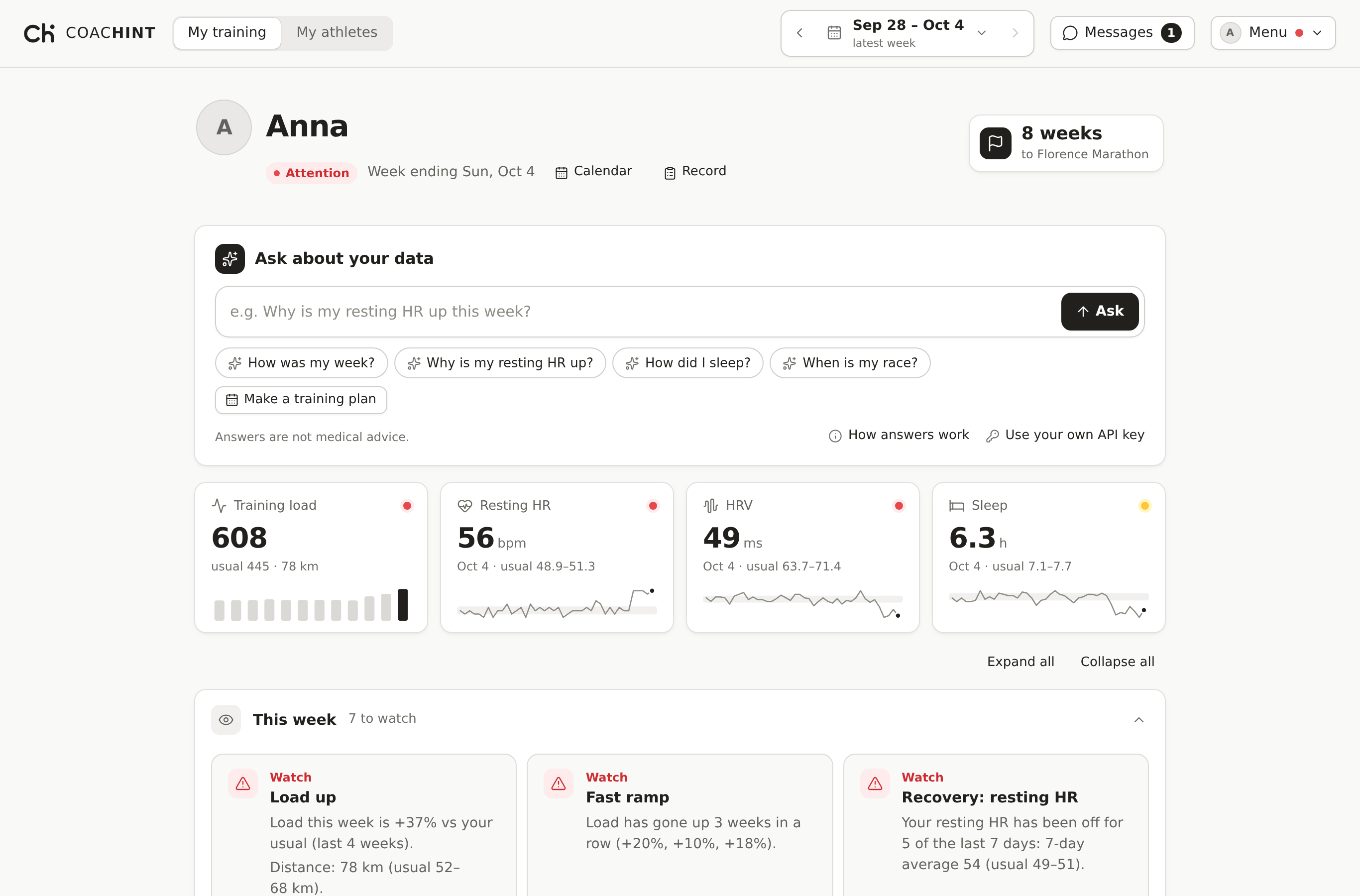
- You see your own data, in one column. Nobody else in the trial sees it unless you are in a group: a trainer who follows your group sees it once you agree, and in a group with sharing on, the members who agreed see each other, but only once you agree too, on your Sharing page. You can also pick your own coaches there, under My coaches (more below). [ORGANISER NAME], as admin, sees everyone.
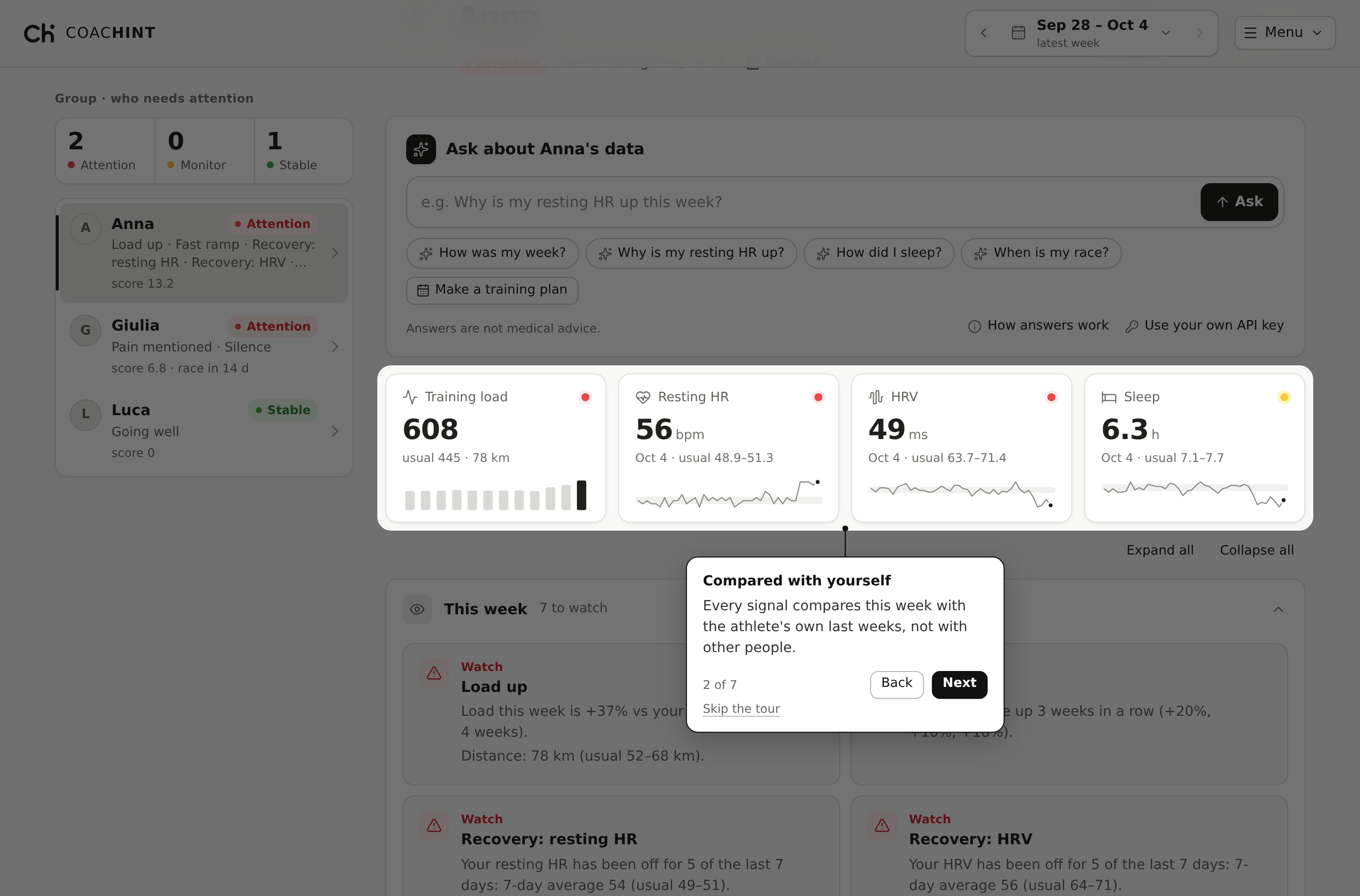
- The first time, a line at the top offers How to read this, a short guided tour: it lights one part of the page at a time (the group, the four numbers, the week's signals, the chat, the notes, the week picker), dims the rest and explains it in a callout; Next and Back move through it, Skip the tour or Esc ends it. Close the line with ✕; the tour stays in the Menu.
Trainers who train too. A trainer can also be an athlete. A switch in the top bar shows My training, your own page exactly as an athlete sees theirs, and My athletes, the athletes who picked you as their coach and the people you see through the groups you follow (with the coach chat for those you coach). The page remembers which one you used last. The switch shows only once you keep your own training here: until then Keep my own training in the Menu gives you your own, empty data, then Import adds your watch files. Nobody sees it until you join a group and agree to share, on your Sharing page, like any athlete.
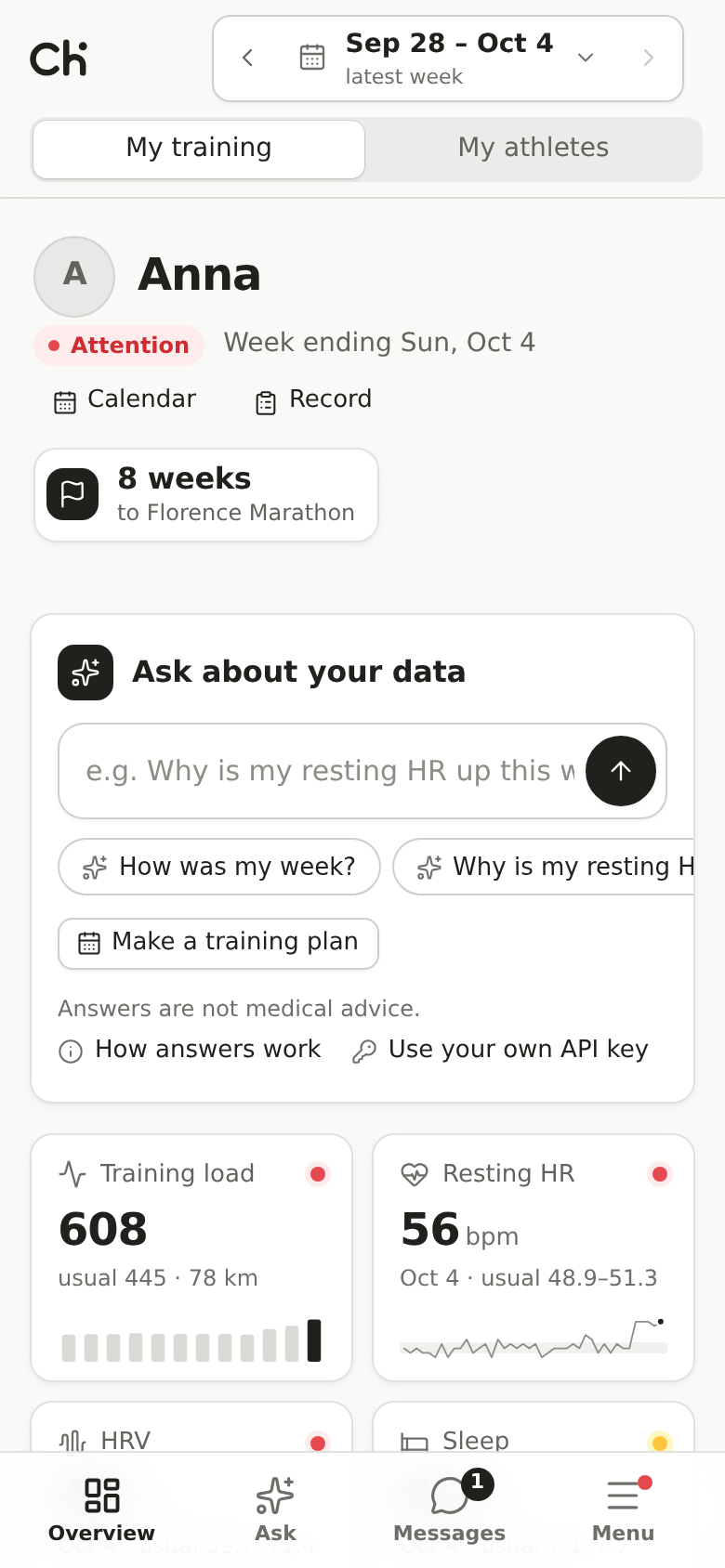
It works on a phone too: the same page in one column, with the week at the top and a bar at the bottom: Athletes (the group, for the admin and trainers), Overview (the athlete's page), Ask (jumps to the chat) and Menu, which opens from the bottom of the screen. Swipe sideways through the week's signals.
Install it as an app on your phone. COACHINT goes on your phone's home screen like an app: its own black and white icon, full screen, no browser bars. It is the same page, so your data, sign-in and settings are the same, and there is nothing to download from an app store.
- Android (Chrome, Edge or Samsung Internet): open the link, sign in, then open the Menu, tap Install app and confirm. If the button isn't there, use the browser's ⋮ menu: Install app or Add to Home screen.
- iPhone and iPad (Safari): open the link in Safari and sign in. Tap Share (the square with an arrow), then Add to Home Screen, then Add. Install app in the Menu shows the same steps.
- Android, from an app file: if [ORGANISER NAME] sent you
COACHINT.apk(or a Google Play testing link), open it on the phone and install. For an APK, Android asks you to allow your browser or files app to install unknown apps: allow it, install, then turn it off again. It is the same COACHINT, so sign in as usual.
From then on, open COACHINT from its icon. It stays signed in for 14 days, then asks again: let the phone's password manager remember your password.
Keep your password to yourself. If you lose it or think someone else has it, ask [ORGANISER NAME] for a new one: the old one stops working at once.
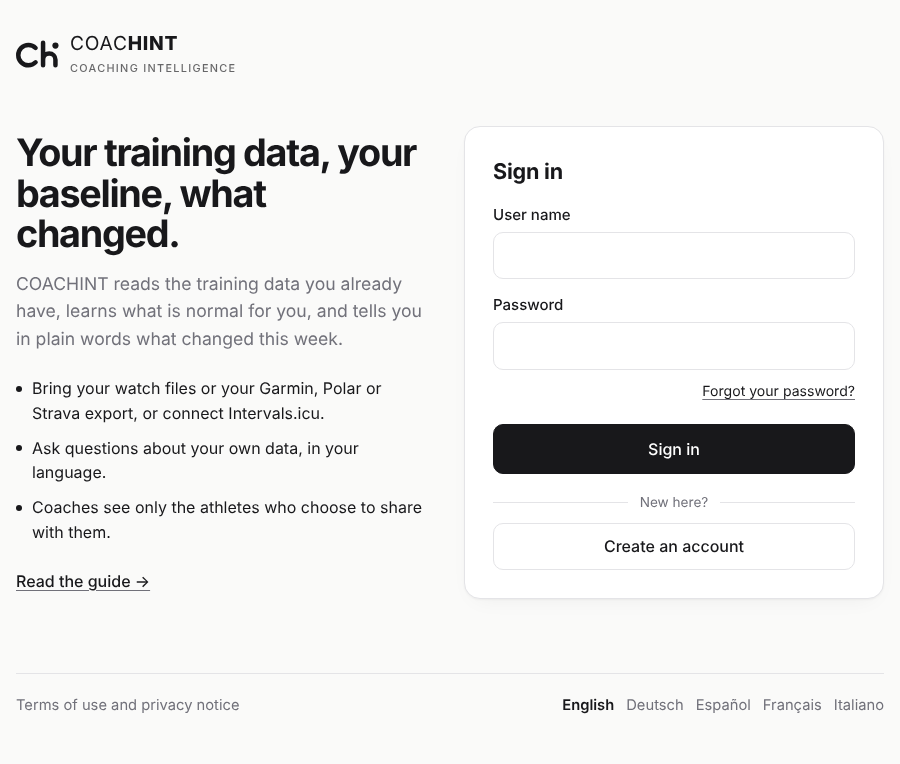
The sign-in page, and signing up on your own. The link opens COACHINT's sign-in page: a few lines on what COACHINT does, Read the guide (the simple manual), and the Sign in box, which takes the user name and password [ORGANISER NAME] sent you, or the ones you made yourself. Someone new presses Create an account under it, which opens the sign-up form (Sign in there goes back): pick a user name (small letters, digits and dashes, like marco-rossi; it is how you sign in), your name if you want others to see it, and a password of at least 12 characters, typed twice, then press Continue to the terms. If the site shows an Email (optional) box, you can give your address: COACHINT sends you a link to confirm it, and later Forgot your password? under Sign in sends a link to choose a new password (it works for one hour). Nobody else sees your address. Without an email, if you forget your password, [ORGANISER NAME] sets a new one. On most sites a new account then waits for [ORGANISER NAME] to approve it: you see Waiting for approval until then, so sign in again later. The page speaks English, Italian, Spanish, French and German (links at the bottom). If [ORGANISER NAME] turned it on, Sign in with Google takes you to Google, where you pick your Google account; the first time, Google asks whether to share your name with COACHINT (not your email). If you are new, the same button creates your account. Some sites show Sign in with Auth0 too (or instead), where you sign in with an email and password. Scripts can still send the user name and password with every request (HTTP basic auth).
The terms of use. The first time, before you see any data, the site shows its terms of use and privacy notice: what is collected, why, who sees it, where it goes and how to have it deleted. Read them (there is an Italiano link), tick the two boxes (one accepts the terms, the other gives your explicit consent to the processing of your health data, which the law asks for separately) and choose I accept. If you are signing up, nothing about you is saved until you accept; if you don't, nothing is kept. When the terms change you are asked again at your next visit. The Terms button in the top bar shows them again, and Sign out ends your session on COACHINT (a browser signed in to Google stays signed in there).
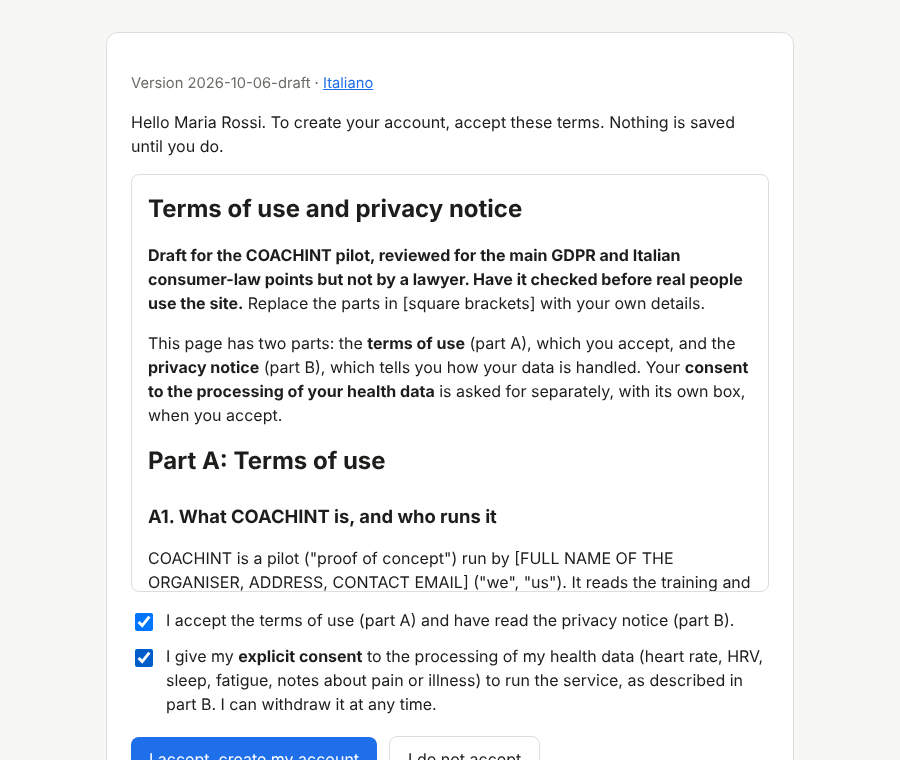
Someone who signs up starts with an empty page and in no group: add your data with Import (section 5), and ask [ORGANISER NAME] to add you to a group if you train with one.
B. The online demo copy (just looking)
[ORGANISER NAME] can share an online copy of the demo: a link that opens in the browser, with sample data and nothing to install. Opened while signed in to claude.ai, its LLM (Claude) switch reads the notes and writes the digest's opening line with Claude, on the viewer's own Claude account and with no API key. Notes added there stay in your browser, and so do the Useful / Dismiss ratings you give the sample Past digests (one for each of the last 7 days of the sample data). A Play bar under the top bar lets you try the roles: choose Admin, the trainer Elena, Anna, an athlete who also coaches (with the My training / My athletes switch), or one of the other athletes, and the page shows what that person sees. As the admin, open Admin to change roles, groups and who may use the LLM key; as an athlete, open Sharing to agree (or stop agreeing) to share with the Run club and watch who sees whom change; as Giulia, open Sharing to see her two coaches under My coaches (Elena through her group, Anna whom she picked) and add or remove one; as the trainer, see that the groups followed are readable but not editable. As an athlete (or the admin) you can also add, edit or remove an activity (section 3, Add an activity by hand), and edit or remove the sample's notes, food, races and past digests; they stay in your browser too. The team there is made up, the changes stay in your browser and Start over resets them. To make your own copy, run coachint export samples/ (or coachint export my-group/): it writes one file, coachint-demo.html, that opens with a double-click and can be sent by email.
C. On your own computer
You need uv and git (see Setup: install uv above). Then download the code and start the app:
git clone https://github.com/drugilsberg/coachint-workspace.git
cd coachint-workspace
uv sync
source .venv/bin/activate    # Windows: .venv\Scripts\activate
coachint app samples/
Activating the environment lets you type the coachint … commands in this guide as written. Without it, put uv run in front: uv run coachint app samples/.
Then open http://localhost:8000 in your browser. To stop the app, press Ctrl+C in the terminal. This version has no login: it answers only on your own computer, and no data leaves your machine unless you turn on an LLM (section 10).
3. A tour of the screen
What you can click. The page uses one rule everywhere. The four numbers at the top of an athlete's page open their charts. A tile's title line (with a ⌄ on the right) opens or closes that section. An athlete row with a › opens that athlete. Underlined text and buttons do something: suggestions under the chat, Route & splits ›, Use your own API key. The week in the top bar (with a ⌄) opens a calendar. Flat cards inside a tile (counters, signals, charts) only show data. In the digest, the dashed In the message: pills are a picture of the buttons the athlete gets in Telegram or email, not buttons on this page.
Top bar
On the left is the COACHINT logo: C, h and i in one stroke. COAC + HINT: coaching intelligence, and a hint from your coach. The same logo is the browser tab's icon and sits on the sign-in pages.
| Control | What it does |
|---|---|
| Week (for example Sep 28 – Oct 4, latest week) | The 7 days you are looking at; the app opens on the 7 days ending today. Click it to pick any week from a calendar. |
| ← / → | Moves back or forward one week. The arrow keys on the keyboard do the same. An arrow is greyed out when there is no data beyond it. |
| Latest | Shown when you are looking at an older week: jumps back to the latest one. |
| Play | Only in the online demo copy: shows the page as the admin, a trainer or an athlete would see it (section 2, B). Start over resets the demo team. |
| My training / My athletes | Your own page, or the athletes you coach (section 2, A). An athlete who doesn't coach yet finds Coach other athletes in the Menu instead: it explains how to become a coach and has Ask to coach, which the admin answers by ticking Trainer in the Admin panel. |
| Messages | For anyone signed in: your conversations with your coaches, your athletes, the people in your groups, and each group, with how many you have not read (section 9). On a phone it is in the bar at the bottom. |
| Menu | Everything else, in one place (with your profile picture on the button). Click outside it or press Esc to close it. |
The Menu holds:
| Item | What it does |
|---|---|
| Import | Adds files to an athlete (section 5). A friend can import only into their own page; only the admin can create a new athlete. Not in the online demo copy. |
| Sharing | For friends and trainers: your groups, who can see your data, and the switch to share yours with a group's members (section 9). |
| People | For friends and trainers: your profile, search and suggestions, requests to connect with a coach, an athlete or a group, and groups you make (section 9). |
| Account | Your profile picture (an avatar or a photo), your own API key for the chat, and which tiles your page shows. The admin sees the account of the athlete open on the page. |
| Admin | For the admin only: people, passwords, roles, groups and who may use the admin's LLM key (section 9). |
| Install app | On the hosted site, when your browser can install it (Android; Chrome or Edge on a computer) and on an iPhone or iPad: puts COACHINT on your home screen as an app (section 2, A). Hidden once it is installed. |
| How to read this | Opens the short guide to the page again. |
| LLM | Shown only to the admin (and in the local app), when the app was started with an LLM (section 10), or in the online copy when you are signed in to claude.ai. Friends and trainers use the chat on their own key, or the admin's if granted (section 9). |
| Language | The page's language: English (EN), Italian (IT), Spanish (ES), French (FR) or German (DE). It starts in your browser's language when it is one of these, and remembers your choice. Signal texts and the digest shown on the page follow it; your notes and the chat's answers stay as written (the chat answers in the language you ask in). |
| Theme | Auto follows your device's light or dark mode; Light and Dark stay as you picked them in this browser. |
| Terms / Sign out | On the hosted site: the terms of use you accepted, and (after signing in on the sign-in page, with a password, Google or Auth0) signing out. |
The address in the browser keeps the athlete and the week, for example …/#anna/2026-09-06. Reloading the page, or sending that link to someone who can see the same athlete, opens the same view.
Group panel (admin, trainers, shared groups)
The three counters show how many athletes need attention, should be monitored, or are stable. Each athlete card lists the reasons and a score. The score is the sum of the active signals, weighted by how much they matter, and raised when several signals happen together or an important race is near.
Two more labels appear for new athletes:
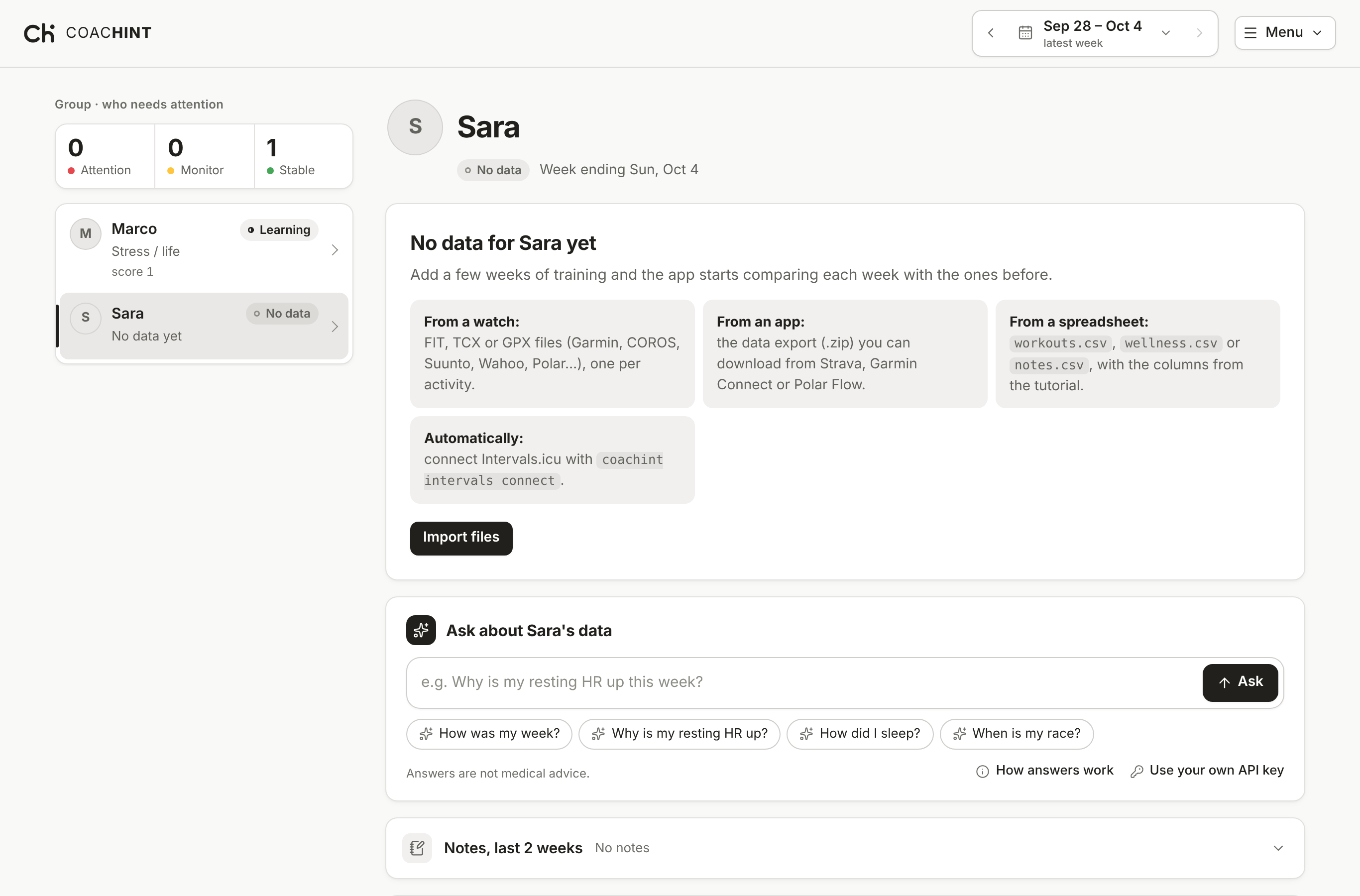
- No data: the athlete exists but has no files yet. Their page lists what to import, with an Import files button. They are not counted in the totals.
- Learning: there are fewer than about 5 weeks of data. A bar shows how far along the baseline is (for example 23 of about 35 days). Signals already appear, but they get better as data comes in.
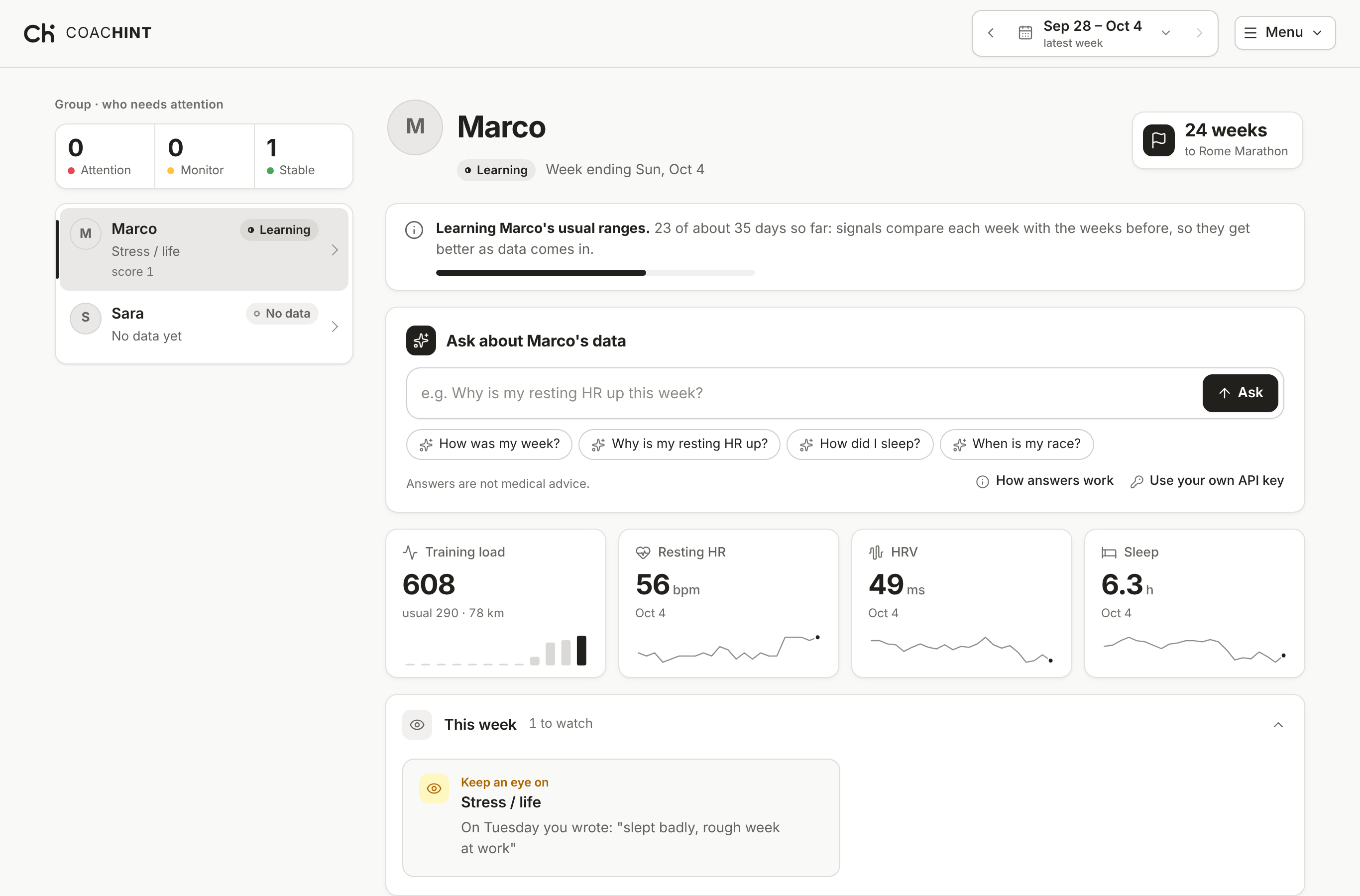
On a phone, the group and an athlete are two screens: tap an athlete to open their page, and All athletes (or Athletes in the bottom bar) goes back to the list. On a computer the group stays in view while you scroll an athlete's page.
Four numbers at the top
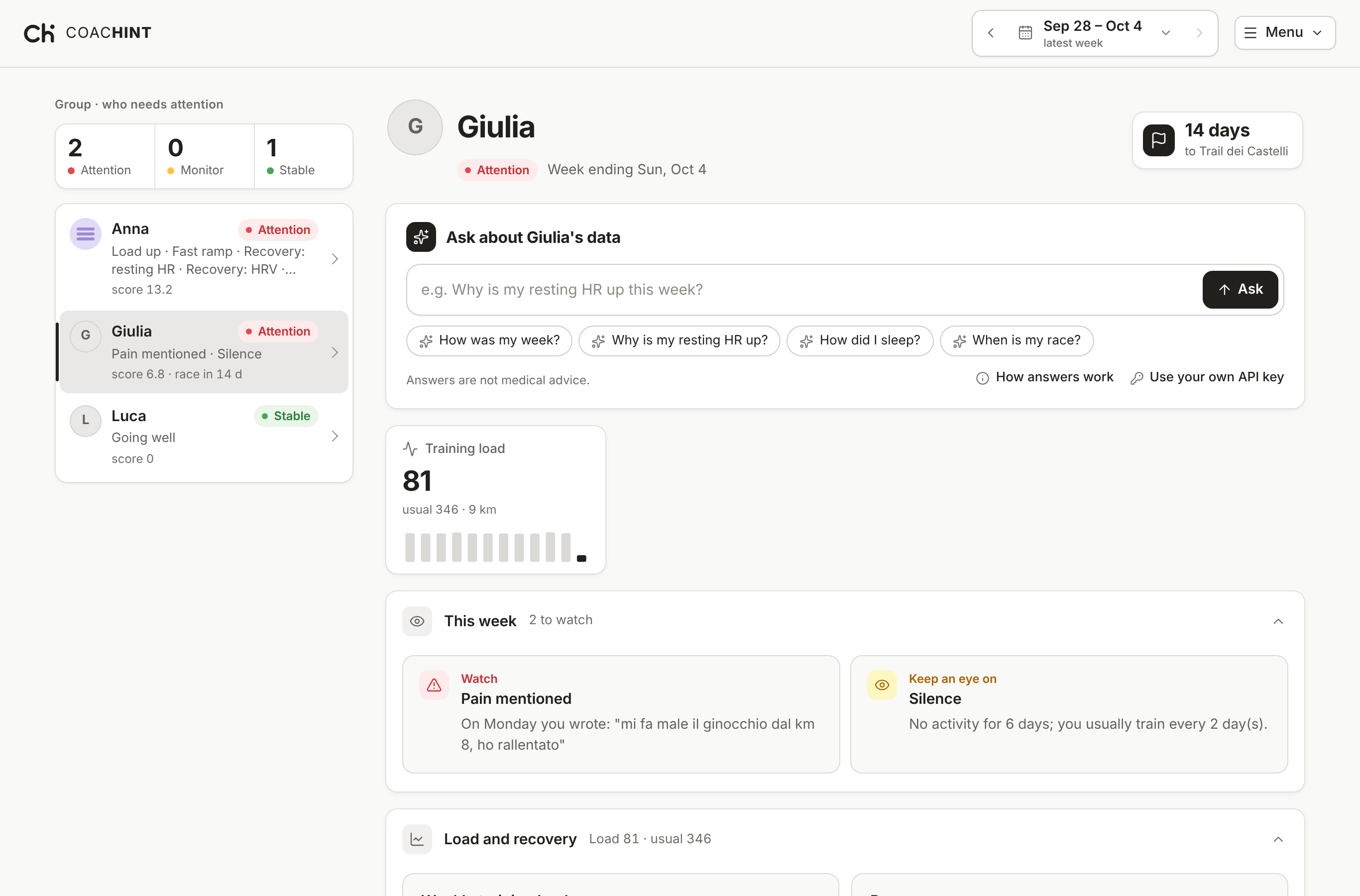
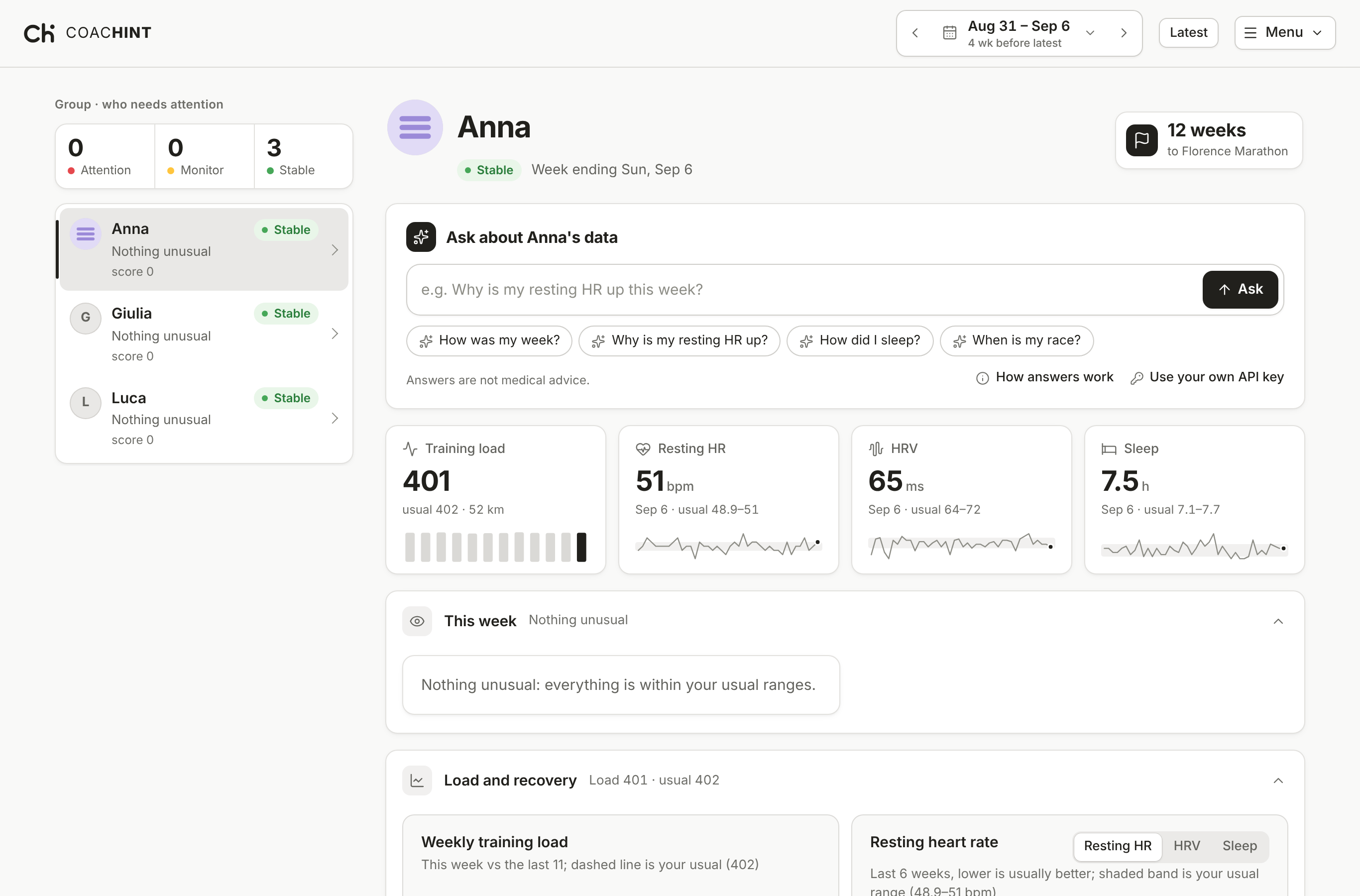
Under the chat, four tiles show the athlete's week at a glance: Training load (this week's load, the usual one and the kilometres, with the last 12 weeks as small bars, this week in black), Resting HR, HRV and Sleep (the latest value and the usual range, with the last weeks as a small line). A red dot means that number has a Watch signal this week, a yellow dot Keep an eye on. Click a tile to open its chart under Load and recovery. Only the numbers the athlete has data for are shown.
Signals ("This week")
Each card says what happened, compared with what. For example: "Load this week is +37% vs your usual (last 4 weeks)." A red triangle (Watch) means watch closely, a yellow eye (Keep an eye on) means worth a look, and a green tick (Going well) means something is going well. Colour on the page always means one of these, or the start and finish of a route; everything else is black, white and grey.
Load and recovery
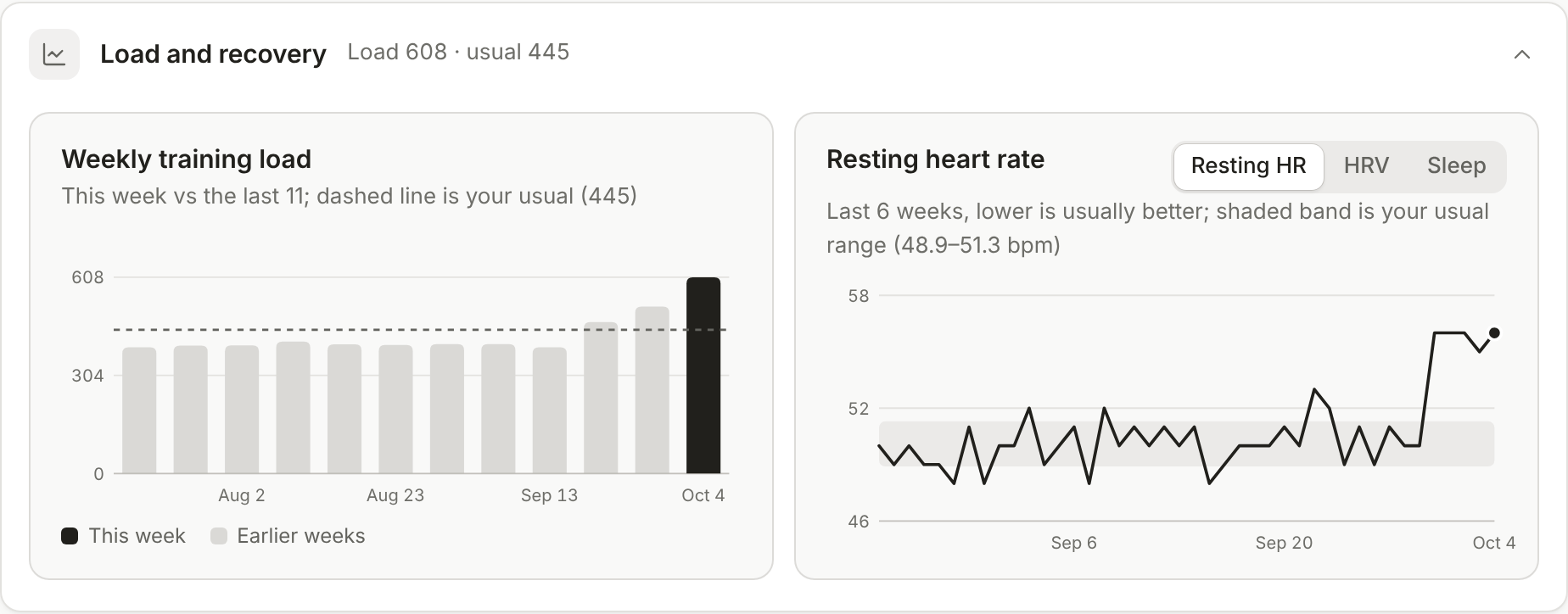
- Weekly training load: the black bar is this week and the grey bars are the previous 11 weeks. The dashed line is the athlete's usual load over the last 4 weeks.
- Recovery: pick Resting HR, HRV or Sleep at the top right of the chart (only the ones the athlete has data for). The shaded band is the athlete's usual range. A line that stays outside the band for several days is a recovery signal.
Hover over (or tap) a bar or a point to see the exact value; on a line, a thin vertical line and a dot follow the pointer.
Calendar
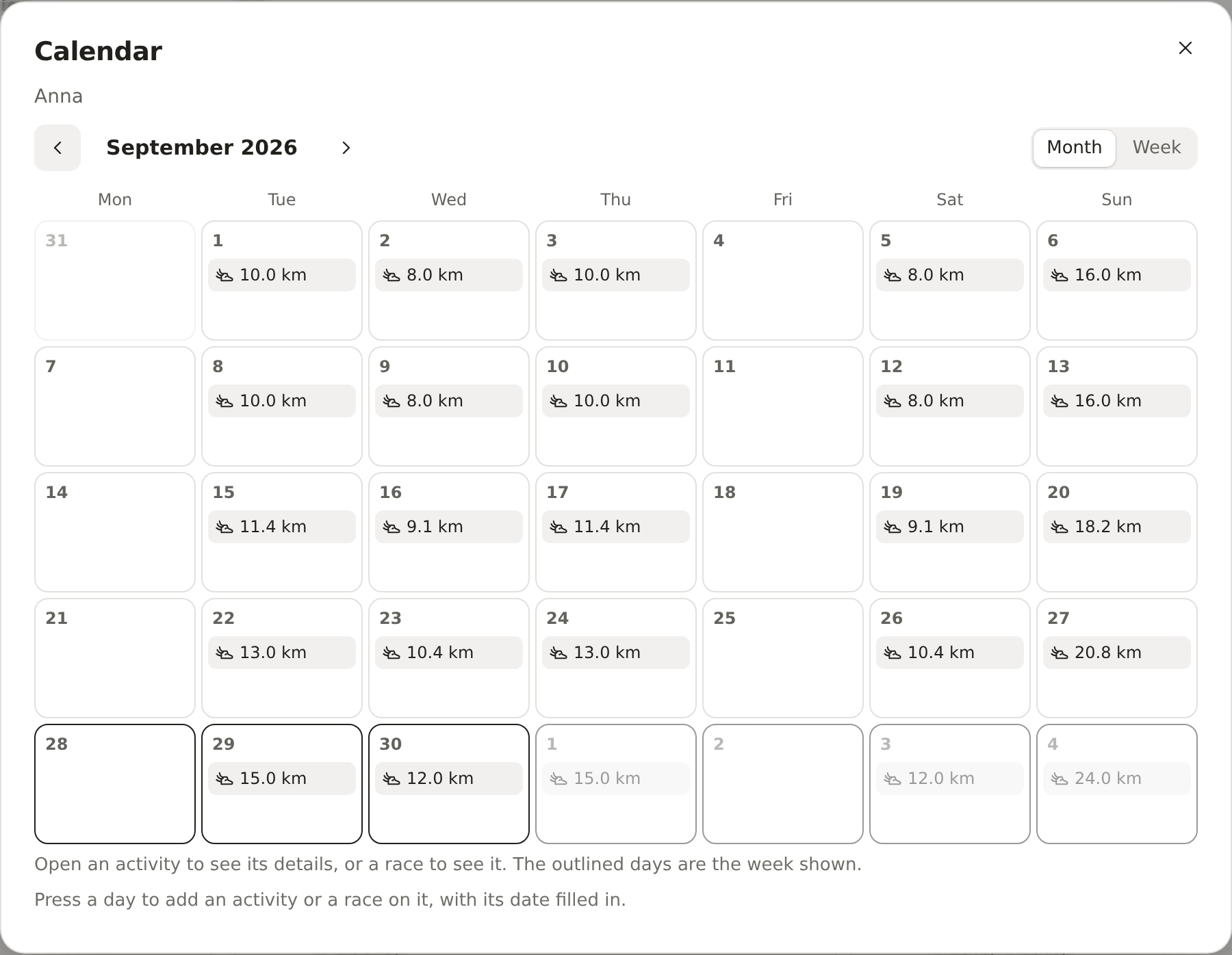
Calendar, under the athlete's name, shows every activity and race on a month, or a week with Week, with ← and → to move. On a phone the month shows an icon per entry: tap a day to list them. Each activity shows its sport and distance (or time); press it to open its details in Activities this week, in the week it falls in. Press a race to see its place, distance and how far away it is, and Edit to change it (when the Races and events tile is shown). Press a day to add an activity (Add activity opens the usual form) or a race (Add race: name, priority, place, distance) on it, with its date already filled in. The outlined days are the week the page shows. Hidden tiles don't hide anything from the calendar.
Training plan
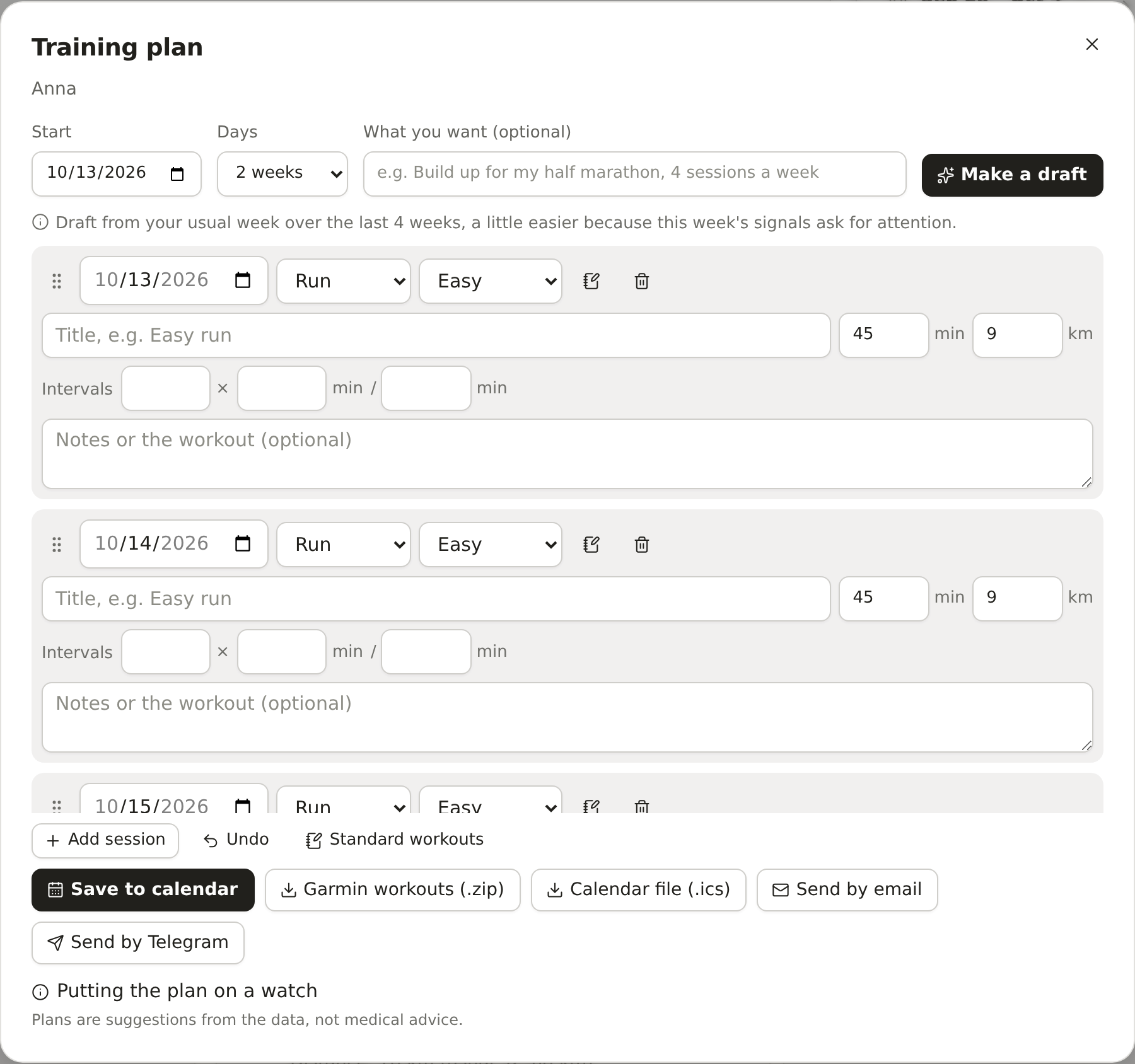
Make a training plan, under the chat (or Training plan in the calendar, or Plan from this day on any day from today up to a year ahead in the calendar), drafts 1 to 12 weeks from that day. A coach looking at an athlete's calendar picks only days from today on: the days before are greyed out. Pick the Start day and how many weeks (up to 12), write what you want if you like ("4 sessions a week, long run on Sunday"), and press Make a draft. With a model the draft comes from your data and your words, and its reasons are checked like a chat answer (May stray from the data when a number is not in your data); without one it repeats your usual week from the last 4 weeks, a little easier when this week's signals ask for attention, and leaves race days free.
Every session can be changed: day, sport, intensity, title, minutes, kilometres, intervals (repeats × work minutes / rest minutes) and notes; the bin removes one and Add session adds one. The sessions stay in date order: a new date moves a session to its place, and one dragged by its handle (or moved with the arrow keys) takes the day of the session below it. Undo (or Ctrl+Z) takes back the last added, removed or moved session, new draft or new start. Save to calendar puts them in the calendar with a dashed border: planned sessions never count in the load or the signals. A coach drafts a plan from the coach chat and downloads it, or presses Send to the athlete: the plan shows at the top of the athlete's page until they press Open the plan, change it if they like and Save to calendar, or Decline it. Only someone who coaches the athlete can send one; sending again replaces the earlier plan.
Standard workouts in the plan dialog lists sessions tested in sports science, each with the study it comes from: the Norwegian 4×4, 30-30 at VO2max pace, threshold, easy and long runs, 30/15 and 4×8 min on the bike, Tabata, a critical swim speed set and heavy strength for endurance athletes. Add to plan puts one in the draft on the next free day, to change like any other session. The notebook button on a session (Save to my workouts) keeps it under My workouts, so a coach builds their own templates once and adds them to any athlete's plan. Each of yours is private until you pick who sees it: your coaches, your connections (your athletes and your groups) or everyone on COACHINT. What others share with you shows under Shared with you: add it to a plan, or Copy to my workouts to change it.
To put it on a watch: Garmin workouts (.zip) holds one FIT workout per session. Unzip it, connect the watch with its cable, copy the .fit files into GARMIN/NewFiles, unplug: they are under Training, Workouts. Garmin Connect's own calendar can't be filled from here (Garmin's API is for approved companies only). Polar watches only take planned workouts made in Polar Flow or sent by Polar's partners, so for Polar use Calendar file (.ics) in your phone's calendar and set the sessions up as training targets in Polar Flow. The calendar file works with any calendar app.
To send the plan as a message, press Send by email (your mail app opens with the plan written in) or Send by Telegram (Telegram opens to pick the chat); on a phone Share… offers every app you have. The message lists one session a line, with its notes under it. It goes from your own email or Telegram: COACHINT sends nothing and keeps no address.
Did you follow it? In the calendar a past planned session gets a tick when an activity on its day, of the same kind of sport, did it, and is crossed out when nothing did. Under the grid, Plan followed counts the sessions done and the share of the planned time. Press a planned session to see which activity did it (Open the activity); under Done by pick another one from the days around it, or Not done. The online demo has a sample plan for the last two weeks of its data.
Activities this week: route, profile and splits
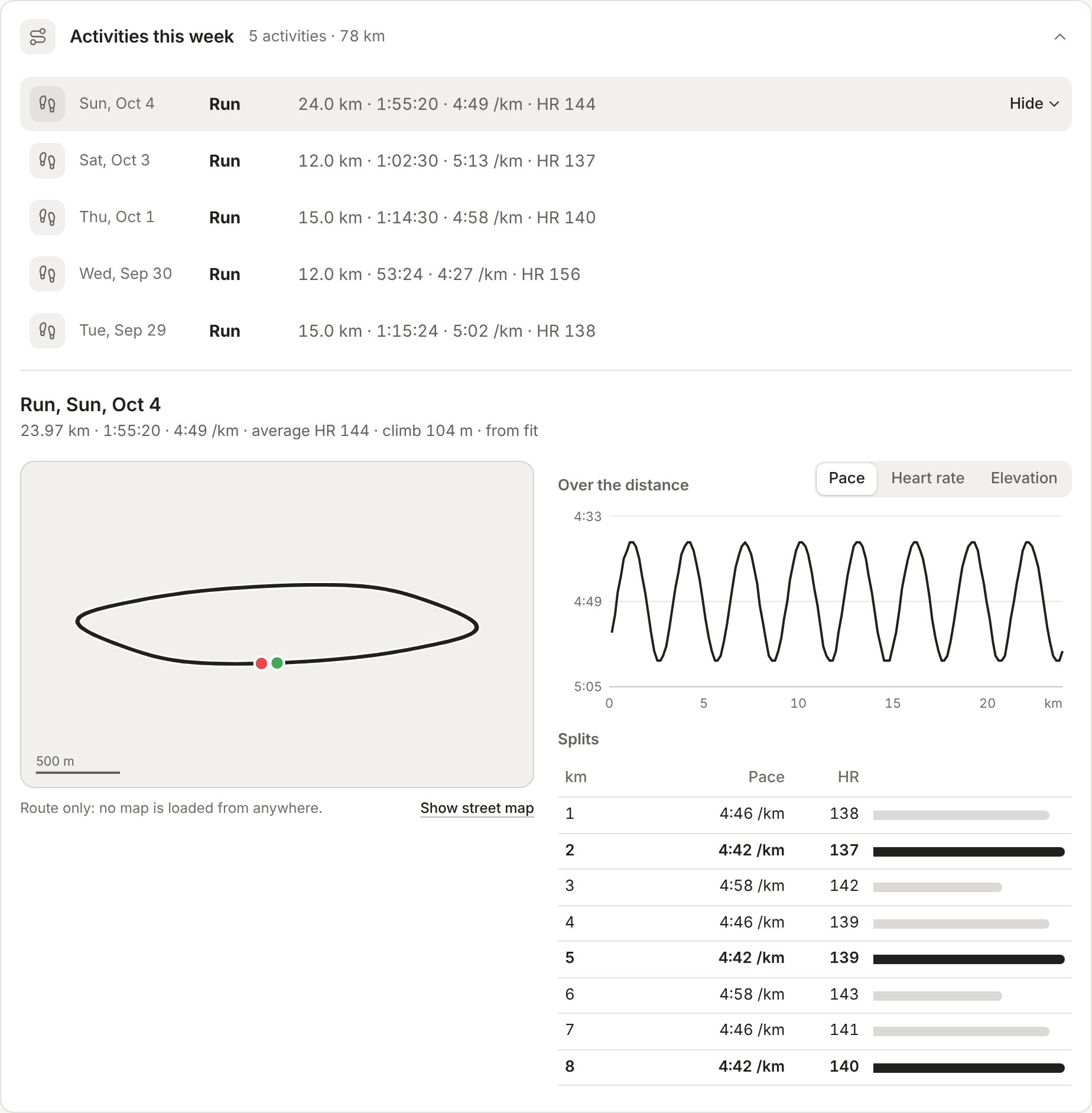
The Activities this week tile lists every workout of the week with its distance, time, pace (or speed) and average heart rate. A workout that came from a watch file, a watch export or Intervals.icu shows Route & splits: tap it to open
- the route, drawn on a plain background (green dot: start, red dot: finish, with a scale bar);
- pace, heart rate or elevation over the distance (pick one at the top right; faster pace sits higher);
- the splits, one row per kilometre, the fastest ones in black.
A workout typed into a CSV file or added by hand has only its totals, so it has no route. In the sample group, Anna's Sunday long runs have one.
Show street map puts a map from OpenStreetMap under the route. Only then does your browser ask OpenStreetMap for the map of that area (it sees your IP address and the area, nothing else); the choice is remembered in your browser, and Hide street map turns it off. In the online demo copy the street map may not load; the route is drawn anyway.
Privacy: a route shows where someone trains, and often where they live. You see your own routes whole; a trainer or a group member sees them without the first and last 200 metres. Download my data includes your routes (activities.json).
Add an activity by hand
For a session no watch recorded (a gym class, a swim without the watch, a ride on a friend's bike), open Activities this week and press Add activity. Pick the sport: Run, Trail run, Walk, Hike, Swim, Ride, Strength, HIIT or Other (then type the sport, e.g. yoga). Every form asks for the day, start time and duration, and optionally average and maximum heart rate, kcal, a comment, the Equipment (shoes, bike: it starts with your default for that sport, set in Menu, Account, Default equipment, else the last one you used) and the Workout as planned (several lines: paste what your coach or the chat wrote). Comments, workouts and notes keep their line breaks: Enter starts a new line. Then each sport adds its own fields:
- Run: distance in km and climb (metres up).
- Trail run: distance and climb.
- Walk: distance in km and climb.
- Hike: distance and climb.
- Swim: distance in metres, the pool (25, 33 or 50 m, or open water) and the lengths swum; left empty, the form works them out from the distance and says about when the distance is not a whole number of lengths.
- Ride: distance, climb and average power in watts.
- Outdoors (run, trail run, walk, hike, ride) there is also an optional Weather field, e.g. 28 °C, windy.
- Strength: the exercises, one row each (name, sets, reps, kg); Add exercise adds a row.
- HIIT: rounds, work and rest in seconds; leave the duration empty and it is counted from them.
Effort (RPE 1–10), how hard the whole session felt (1 very easy, 10 all out; a short explanation sits under it), is what gives the session a training load when there is no heart rate, so the page asks for one of the two. The activity then counts like an imported one: in the weekly load and the signals, in the calories burned (on a trail every 100 m of climb counts as one more km), in the chat's answers, and its comment is read like a note. Its row says added by hand; open it with Details to see what you typed, Edit to change it, and Remove this activity to take it back. If a watch file of the same session arrives later, the file takes its place and keeps your effort, comment and exercises. The same session typed twice is refused. Adding an activity works in the app, on your own page and in the online demo copy. In the demo it stays in your browser, it counts in the week's list, load and kilometres, in the calories burned and in the notes its comment gives, and the other signals stay those of the sample data (the signal engine runs on the server); the date must be a day the sample data has.
Curious where an estimate comes from? A small Sources line sits under the effort field, the training load chart, the calories note of the Food and calories card and your weight and height: click it for the studies behind each number (the README lists them too).
Correct an imported activity
Watches get things wrong: a strap that slipped, a lap that ran on in the car, a forgotten stop. Open any of your activities with Details and press Edit: the same form opens with the device's numbers filled in. The sport, date and start time stay (they name the session); change the duration, distance, heart rate, effort, kcal or comment and press Save changes. Load, signals, calories and the chat use your numbers from then on, a later sync of the same session does not undo them, and the row says edited by hand. The route, splits and profile still come from the device, so a small warning in the form and in the details says they may no longer match. Undo my edits brings the device's numbers back.
Every activity in the week's list opens with Details, even one with no route or splits, and every one has a pencil (edit) and a bin (Remove this activity) at the end of its row, the same buttons as under Details. One you typed in is deleted. An imported one (a session recorded twice, a watch left running) stops counting in the load, the signals, the calories and the notes, and moves to Removed by you at the bottom of the tile: a later sync does not bring it back, and Bring back does, with any corrections it had. It is still in Download my data (removed-workouts.csv).
Notes and digest
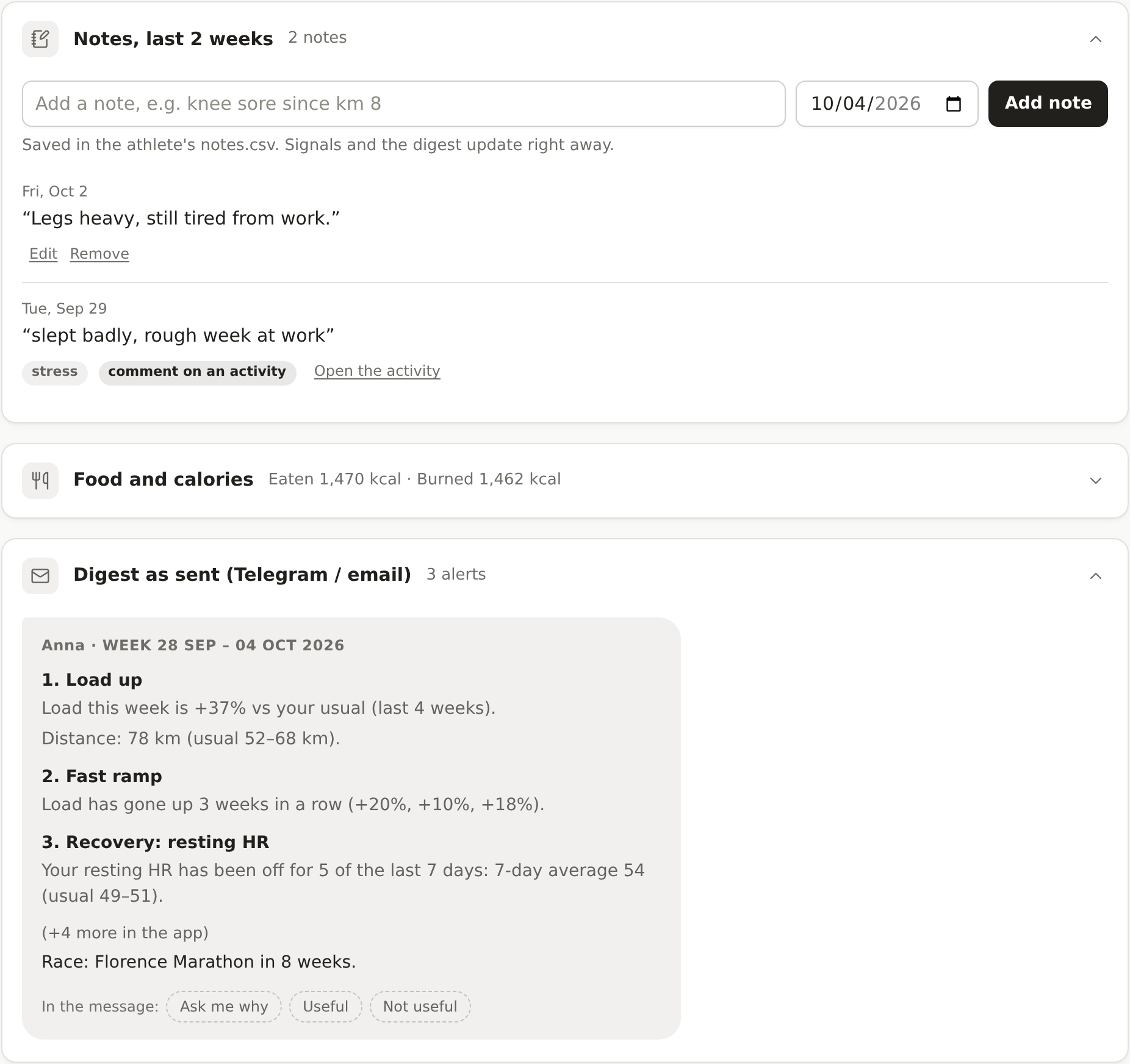
Workout comments and daily notes, in English or Italian, are read for pain, illness, stress, motivation and feeling good. The Digest as sent tile shows it as the message the athlete receives: the top 3 items, how many more are in the app, the next race, and the reply buttons.
Add a note
Open the Notes, last 2 weeks tile, type a note above the list, pick the day (any day of the last two weeks) and press Add note. The note is read at once: a note like "knee sore since km 8" adds a Pain mentioned signal, moves the athlete up the group ranking, and appears in the digest. With the LLM switch on, the model reads the note and rewrites the digest's opening line.
Each note has Edit (change the words, then Save) and Remove, and the signals and the digest follow at once. A note you wrote is changed or deleted for real. One Intervals.icu sent is marked from Intervals.icu: your change is kept apart and a later sync does not undo it (Undo my edits brings its own words back), and a removed one does not come back. A workout's comment is marked comment on an activity, with Open the activity: change it with that activity's Edit.
- On your own page or in the app on a computer, the note is saved with the athlete's data (
notes.csv). - In the online demo copy, the note is saved only in your browser. Remove deletes it.
Ask about your data
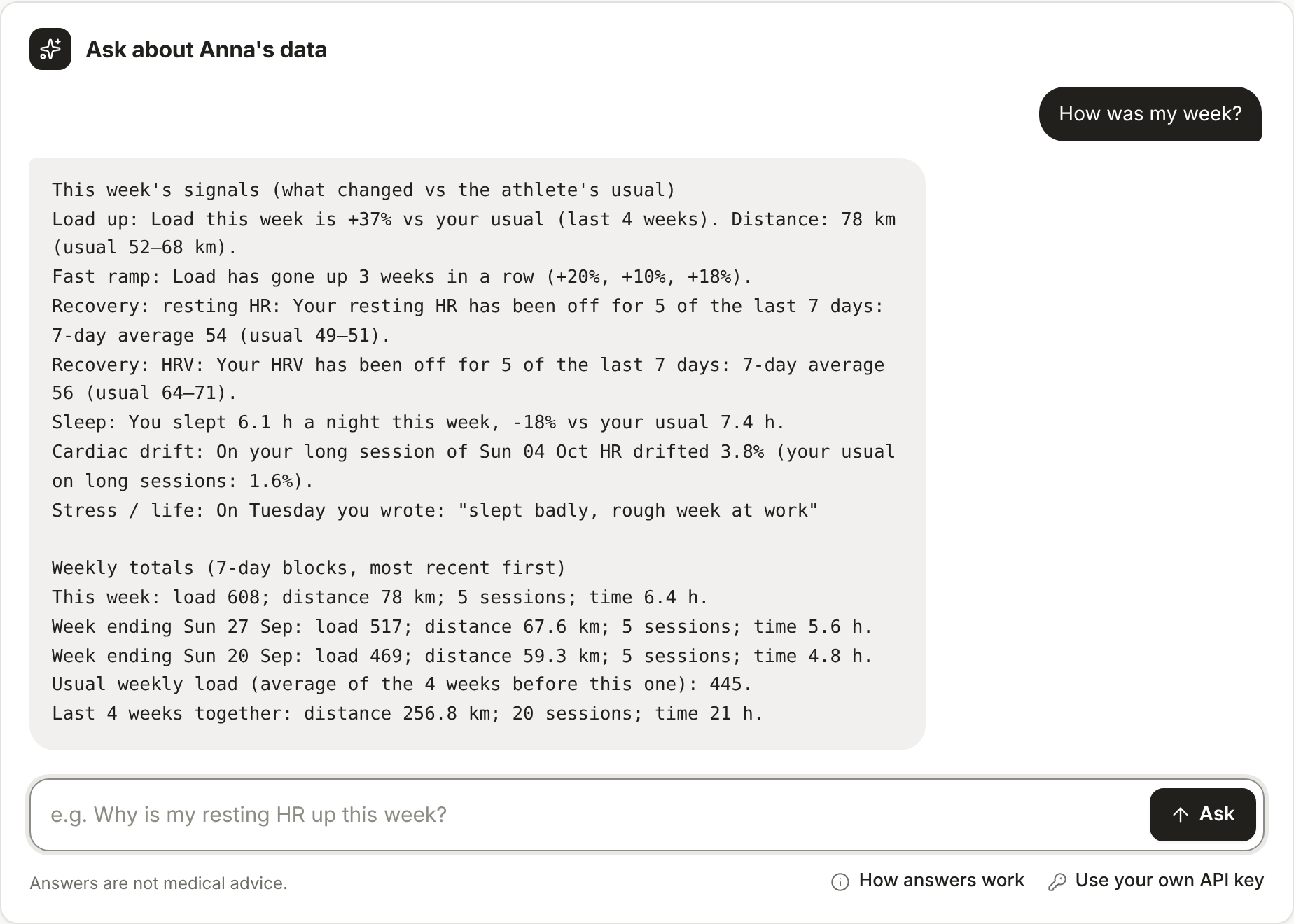
Right under the athlete's name, Ask about your data answers questions about the week you are looking at, in any language: "How did I sleep?", "Quanto manca alla gara?", "Combien ai-je dormi ?". Answers come in the language picked in the menu, unless you clearly write in another. Tap one of the suggestions or type your own. It can suggest what to change in your training, based on your data. Answers are not medical advice, as the line under the chat reminds you. How answers work, under it, says which model answers and what it may use.
- With a model, it answers in plain words, in your language, using only your data up to that week. Every number and date in its answer is checked against your data. If it cites one that isn't there, the answer is still shown, with an amber May stray from the data line under it: tap it to see what isn't in your data, and check those numbers before relying on them.
- Which model answers: your own API key if you saved one; otherwise the admin's key if [ORGANISER NAME] shared it with you for testing; otherwise the open model. The line under each answer names it.
- Without any model, the answer is the matching lines of your data straight away.
- A friend can only ask about their own data. Questions that don't use your own key are limited to 30 an hour.
- The answer only quotes numbers that are in your data, so a question that needs a new calculation ("my average pace over 3 months") gets the closest lines instead.
- In the online demo copy, your own key answers if you added one (below). Otherwise Claude answers on your own claude.ai account, with the same checks; opened as a plain file, outside claude.ai, the answers are the matching lines of the data.
Use your own API key
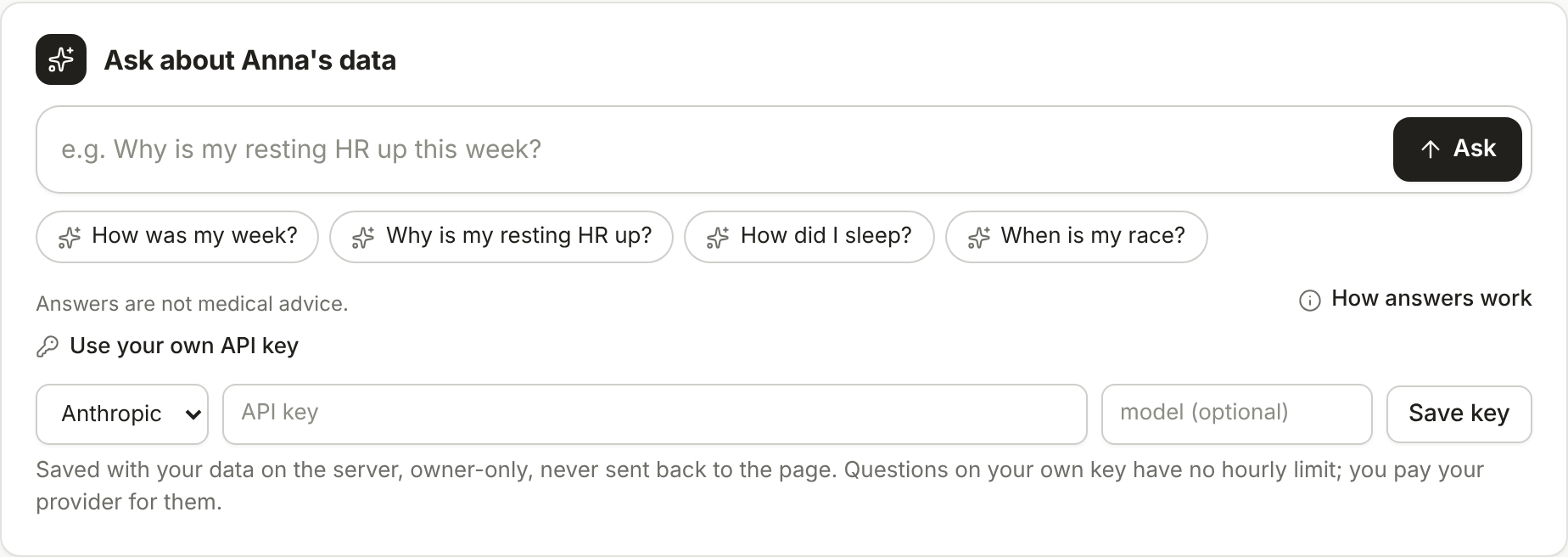
Open Use your own API key under the chat, pick Anthropic or OpenAI, paste your key (section 10 shows where to get one) and press Save key. You can also type a model name; otherwise Claude Opus 5.5 or gpt-5-mini is used. The key is saved with your data on the server, readable only by the server's owner, and never shown again: the page only says which provider and the last 4 characters. Your provider bills you for your questions, and there is no hourly limit. Remove it deletes the key. The same box is in the Account panel. Save key first asks your provider whether the key works (a free lookup, no question spent): a key it refuses, or a model name it doesn't know, is not saved and the box says so. This works on a hosted site with no admin model set up at all.
In the online demo copy there is no server: the key stays in that browser tab only, until you close it, and the questions go straight from your browser to Anthropic or OpenAI. Some sites that show the demo block those calls; the answer then says so, and your key still works on the hosted app.
Your account and profile picture
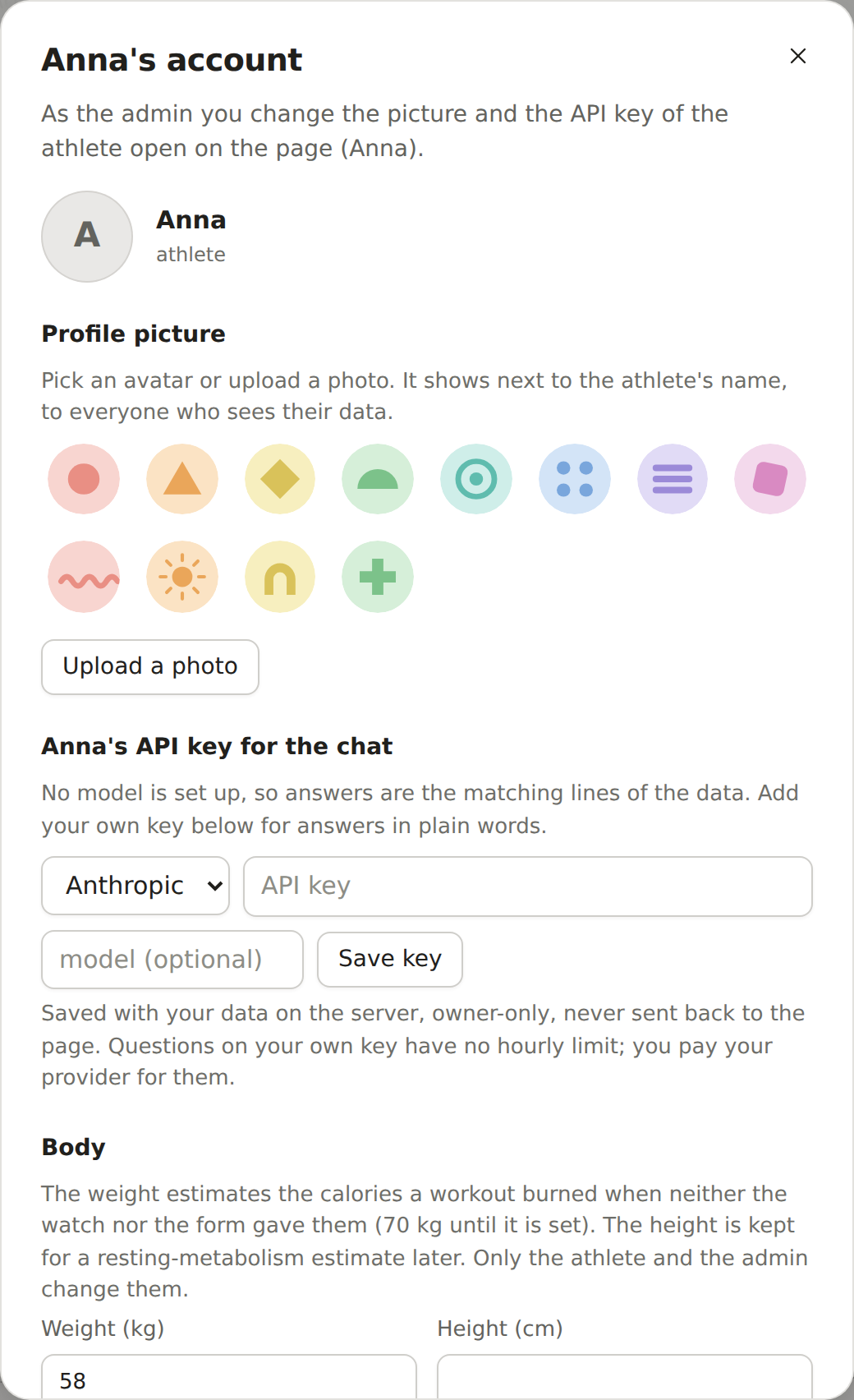
Account in the Menu opens your profile picture and your own API key. Pick one of the twelve avatars, or Upload a photo (JPEG, PNG or WebP): the page cuts it to a square and makes it small before sending it. Your picture shows next to your name in the list and on your page, to you and to the people who see your data. Remove picture goes back to your initials. The picture is in Download my data and is deleted with your account. In the online demo copy it stays in your browser.
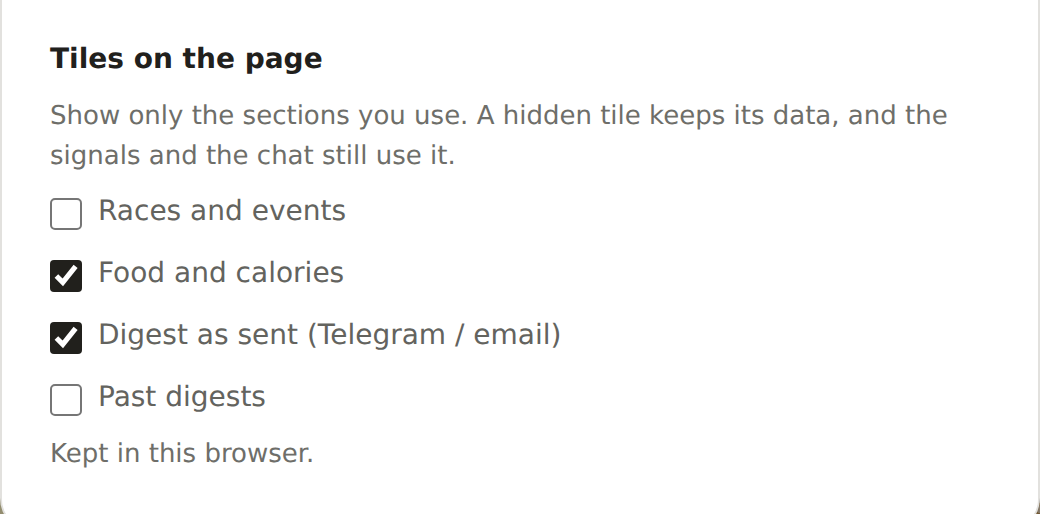
Under Tiles on the page you choose which tiles your page shows: Races and events, Food and calories, Digest as sent and Past digests. Races and past digests start hidden, so tick them to see them. A hidden tile is only hidden: its data is kept, and the signals, the race countdown and the chat still use it. Your choice is kept with your account and follows you to every device; for the admin, and in the online demo copy, it stays in the browser.
If you keep your training here, Body in the same panel holds your weight and height; Save weight and height keeps them. The weight estimates the calories a workout burned when neither your watch nor the activity form gave them (70 kg until you set it); it is the same weight as in the Food and calories card, so changing it in either place changes both. The height is kept for a resting-metabolism estimate that will come later.
Coach chat (trainers)
A trainer looking at one of their athletes gets Coach chat about Anna in place of the athlete's chat. It uses the same data and the same number check, but it talks to you about the athlete ("How should I adjust Anna's next week?", "What should I ask Anna about?") and gives coaching suggestions. The conversation is yours: only you see it, the athlete doesn't, and it is still there next time (Start a new conversation deletes it). It answers on your own key, or the admin's if granted, like the chat. If the athlete stops sharing with you, you no longer see it; if they leave, it is deleted. In the online demo copy, play the trainer Elena to try it; there the conversation stays in your browser.
Under the coach chat, Private notes is a box for what you want to remember about the athlete: what you agreed, what to keep an eye on. Write as many lines as you need and press Save notes. Only you see them: the athlete doesn't, and neither do their other coaches. They are in your own data download and are deleted if the athlete leaves.
Races and events
The Races and events tile (hidden at first: tick it in Account, Tiles on the page) lists the races you are training for, soonest first, each with its priority (A the goal of the season, B an important race, C a training race), the date and how far away it is. The next one sets the countdown at the top of your page, and in the two weeks before an A race the signals weigh more (and a drop in load is read as a taper).
- Add one by hand: type the name and the date, pick the priority, and if you like the place, the distance in km and a link to the event's page, then press Add event. The name opens the link in a new tab. Edit and Remove change or take out a race.
- Search: type part of a well-known race's name (Florence Marathon, Maratona di Roma, UTMB) and press Search. The results come from Wikidata, a free open database; Use fills in the name, the place, the link and, when Wikidata knows it, the date of the next edition. Check the date on the event's page, then press Add event. Only the words you typed are sent to Wikidata. Small local races are usually not there: type them in.
- Whoever sees your data sees your races too; only you change them. They are in Download my data and deleted with your account. In the online demo copy what you add stays in your browser, and searching works only in the app.
Athlete record
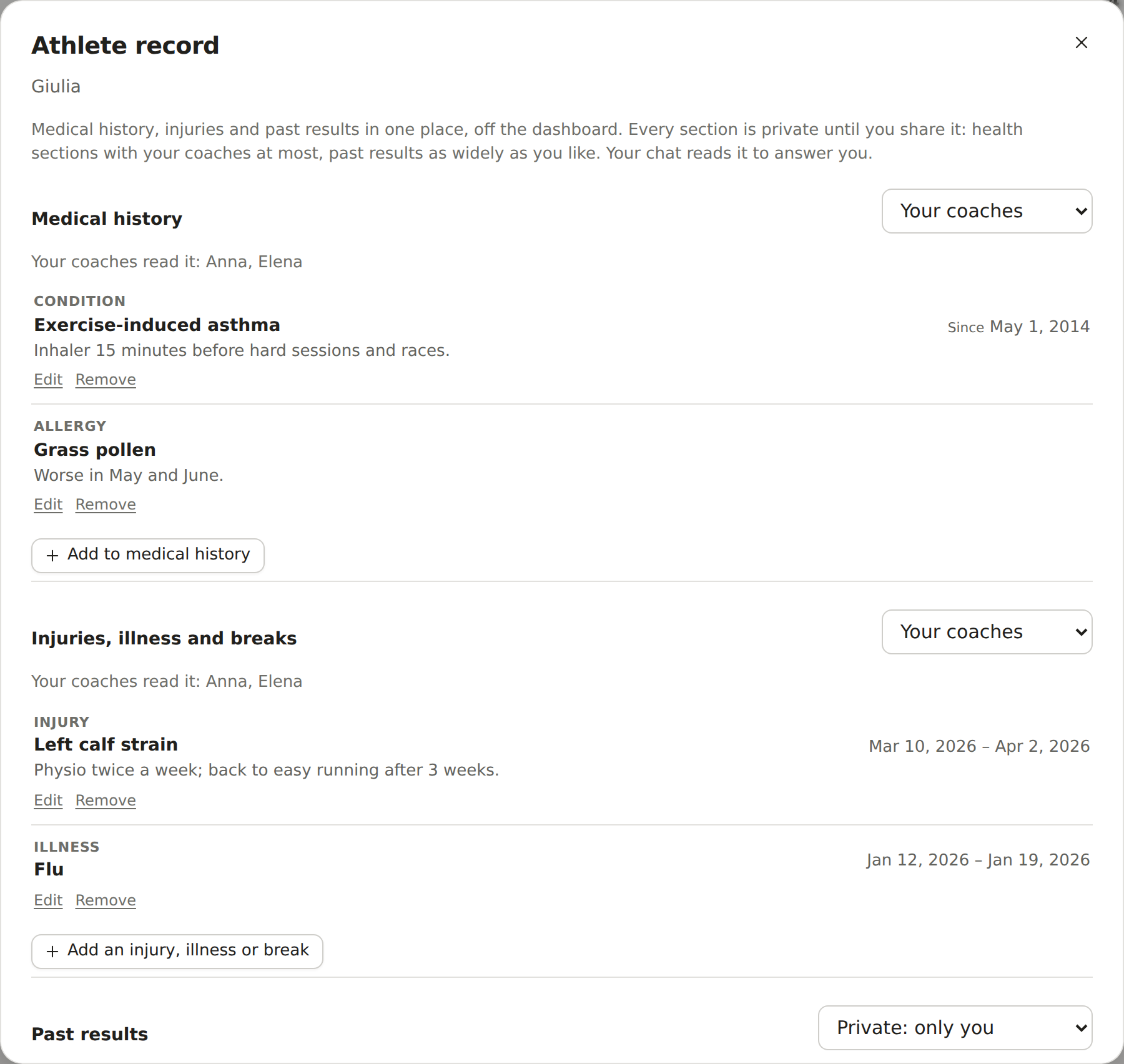
Record, next to Calendar under your name, opens your athlete record: a place off the dashboard for what a coach needs to know beyond the training data. It has three sections:
- Medical history: conditions, surgeries, allergies, medication and other health notes, with a date if you like (since, until).
- Injuries, illness and breaks: each with the day it started and, once it is over, the day it ended.
- Past results: the date and the race, whether you finished (or did not finish, or did not start), the distance and climb, your time and your goal time, your place overall and in your category, the conditions and a link to the results page. From your races… fills one in from a past race in Races and events.
Press the add button under a section, fill in the form and press Add; Edit and Remove change or take out an entry. Each section has its own menu of who reads it: Private: only you (where every section starts), Your coaches (the ones you picked and the trainers of a group you share with), Your connections (also the people you are connected with or share a group with) or Everyone on COACHINT (also anyone signed in who finds your profile on the People page). Medical history and injuries are health data: they go no further than Your coaches, and the first time you share either one the app asks you to agree; choosing Private: only you again withdraws that, and sharing later asks again. Past results can go as wide as you like.
Your chat reads the whole record to answer you; anyone else's chat reads only the sections that reach them. The record is in Download my data and deleted with your account. On the hosted site the admin does not open it. In the online demo copy Giulia shares her medical history and injuries with her coaches and keeps her results private; play Elena or Anna to see what a coach sees. What you change there stays in your browser.
Feed: what your contacts share
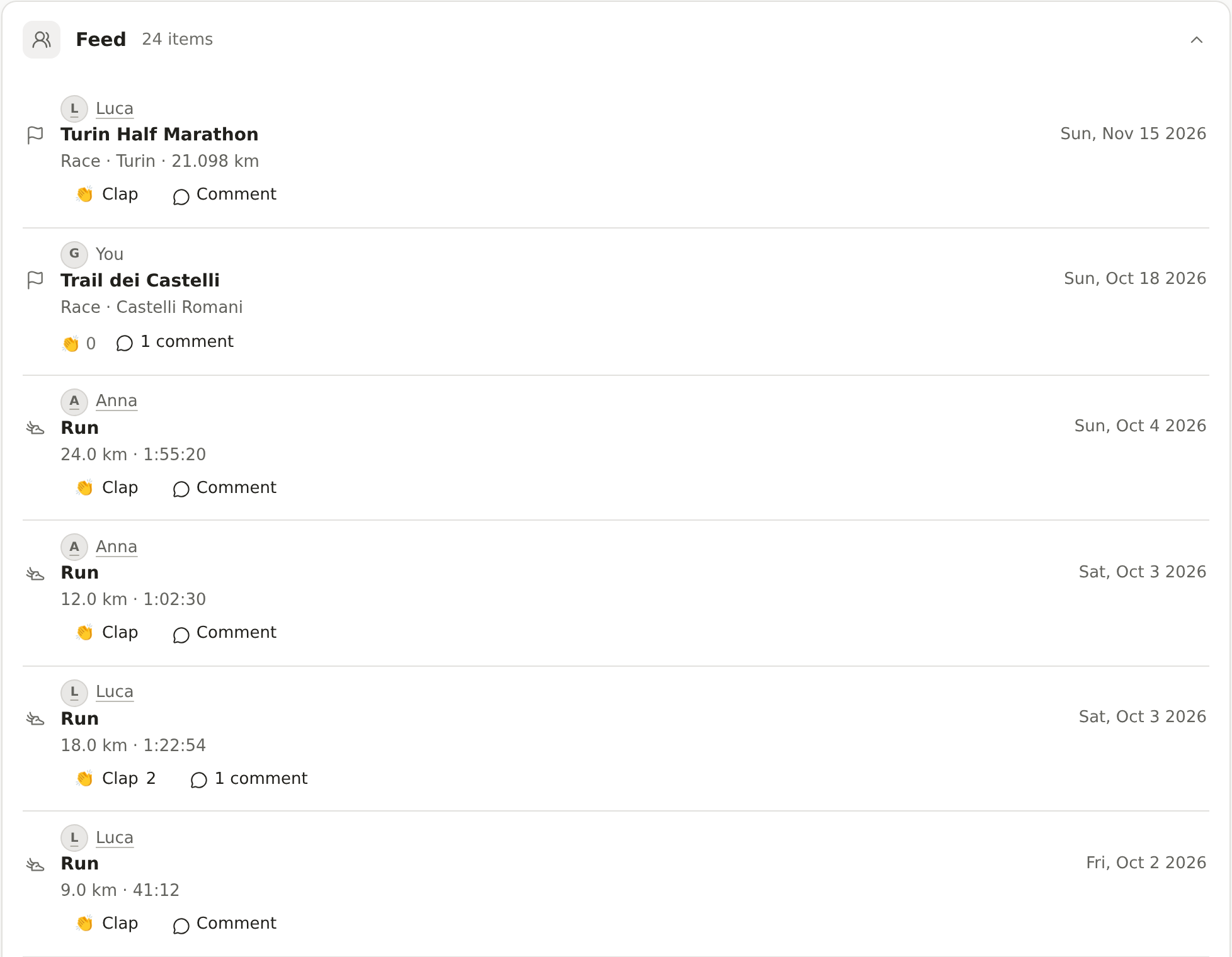
Beyond the people who already see your page, you choose who sees your activities and your races. On the People page, under Who sees what you do, pick a level for Your activities and for Your races and events: Private: only you (the start), Your coaches, Your connections or Everyone on COACHINT. Everyone means anyone signed in who finds your profile, so it needs Discoverable; visitors who are not signed in never see anything, and neither does the site's admin. Others see an activity's date, sport, time and distance, never its heart rate, notes or route.
The Feed tile, last on your page (hide it under Tiles on the page in Account), lists, newest first, the activities of the last two weeks, the races of the coming year and the results of the last year that your contacts (your coaches, your athletes, the people you are connected with or in a group with) let you see. Press a name, or Bio next to someone on the People page, to open their Bio card: who they are, the bio they wrote about themselves, the record sections they share with you and what else they show you. Bio on an athlete's page opens the same card for the athlete and their coaches, with the athlete's sport, resting and maximum heart rate and next races too. Write your own bio in Account > Your bio, and pick who reads it (your connections unless you choose another level): a coach can present themselves to their athletes there. In the online demo Luca shows his activities to his connections and his races to everyone, Giulia her activities to her coaches and her races to her connections, and Anna her results to everyone: play Anna to see a full feed, or Marta to see what a stranger sees on Luca's card.
Under each item, press Clap to show appreciation (press again to take it back) and Comment to read the comments and write one; whoever sees the item reads them, with names. You can remove your own comments, and any comment on your own activities, races and results; those appear in your own Feed once someone claps or comments. In the demo Anna and Elena already clapped for Luca's last run.
Notifications, reports and blocking
Notifications, in the menu, list who clapped for or commented on what you share and who asked to connect, newest first; a number next to the menu says how many are new (new messages keep their own number on Messages). Press one to go to it. If you get the daily digest by Telegram or email, notifications go there too, with your new messages, as names and what happened, never what a comment or message says; untick the box in the panel to stop that. In the demo, play Luca to see Anna's comment and two claps.
Next to every comment and every message from someone else there is Report, and every card on the People page has Report and Block. A report goes to the site's admin with your reason and, for a comment or a message, that one text; Also block them is ticked. Blocking someone means neither of you writes to the other, finds the other, or sees, claps for or comments on what the other shares, and in a group conversation neither reads the other. It ends no coaching or group: remove a coach in Sharing, or leave the group. People you blocked, on the People page, has Unblock. The admin sees open reports in the admin panel and can remove the comment or message, or close the report.
Food and calories
The Food and calories card shows, for one day, what you ate (Eaten), what that day's workouts burned (Burned in workouts) and the Difference, with protein, carbs and fat when you logged them. This week below lists every day of the week you are looking at; tap a day, or pick one with Day, to see it.
- Log a food: pick the meal if you like, type the food, the amount and the kcal (protein, carbs and fat are optional) and press Add food. Edit fills the form with an entry to correct it (Save changes), Remove takes it out again.
- Look up a barcode: type the digits under the barcode in Barcode digits and press Look up (or Enter). In Chrome on Android, Scan a barcode reads them from a photo; on an iPhone, type them. The product's calories, protein, carbs and fat come from Open Food Facts, a free open food database, per serving (or per 100 g). Check them against the pack, then press Add food; the entry is marked "from Open Food Facts". Only the barcode is sent to Open Food Facts.
- Scan a label: for a product the barcode doesn't find, Scan a label lets you take a photo on a phone. Take a sharp photo of the nutrition table: a smaller, cheaper model of your provider (Claude Haiku on an Anthropic key, gpt-5-mini on an OpenAI key) reads it and fills in the form. Check the numbers against the label (if it gives values per 100 g, change them for what you ate), then press Add food. Nothing is saved until you do, and the photo is not kept. It uses your own API key, or the admin's or the open model like the chat; if that model can't read photos, the card says so and you fill in the form yourself.
- Burned is the number your watch or Strava, Polar or Intervals.icu sent for each workout. When there is none, it is estimated from the sport, the time or distance and your weight, and marked with a *: set Your weight (kg) under the week to make the estimates yours (70 kg until you do).
- Burned counts your logged workouts only, not what your body uses at rest, so the difference is not a full energy balance. It is not medical or dietary advice.
- Whoever sees your data (your trainer, group members you share with) sees your food log too; only you change it. It is in Download my data and deleted with your account. In the online demo copy, Anna and Luca have two weeks of sample meals; what you add stays in your browser, and barcodes and labels can't be looked up there.
4. Walk through the sample group
The sample data is made up, and each athlete has a story the engine should catch.
Anna: marathon build, ramping too fast. On 4 October, load is up 37% after three weeks of increases. Her resting heart rate and HRV have been off her range for 5 days, her sleep is short, and on Tuesday she wrote "slept badly, rough week at work". Status: Attention.
Giulia: pain, then silence. She wrote "mi fa male il ginocchio dal km 8" and has not trained for 6 days, two weeks before her race. Status: Attention.
Luca: going well. He runs at a better pace for the same heart rate than in previous weeks, and he wrote "legs felt great". Status: Stable, with a positive signal.
Travel back in time
Press ← four times (or pick 6 September 2026 from the week button, or open http://localhost:8000/#anna/2026-09-06). Everybody is Stable: Anna's ramp hasn't started yet. Then press → one week at a time and watch the signals appear as her load climbs. This is the best way to show how the system works.
5. Use your own data
Create one folder per athlete inside a group folder, for example my-group/marco/. Only profile.json is required.
| File | Contents |
|---|---|
profile.json |
name, sport, hr_rest, hr_max, and events (each with name, date, priority A/B/C) |
workouts.csv |
start, sport, duration_min, distance_km, avg_hr, max_hr, rpe, comment |
wellness.csv |
date, hrv, resting_hr, sleep_h, fatigue |
notes.csv |
date, text |
fit/*.fit |
files exported from the watch (Garmin, COROS, Suunto, …) |
files/, garmin/, strava/, polar/ |
written by coachint import and coachint polar sync (section 6); don't edit them by hand |
A minimal profile.json:
{
  "name": "Marco",
  "sport": "running",
  "hr_rest": 48,
  "hr_max": 186,
  "events": [{"name": "Rome Marathon", "date": "2027-03-21", "priority": "A"}]
}
Then run coachint app my-group/.
The Import button
You can also do all of this from the app: press Import, pick an athlete (the admin can also pick New athlete…), then Choose files or drop them on the dashed box. The app takes:
- FIT, TCX and GPX files from a watch or an app, also gzipped (
.gz); - a whole export .zip from Garmin Connect, Strava or Polar Flow (section 6);
workouts.csv,wellness.csvornotes.csvwith the columns above.
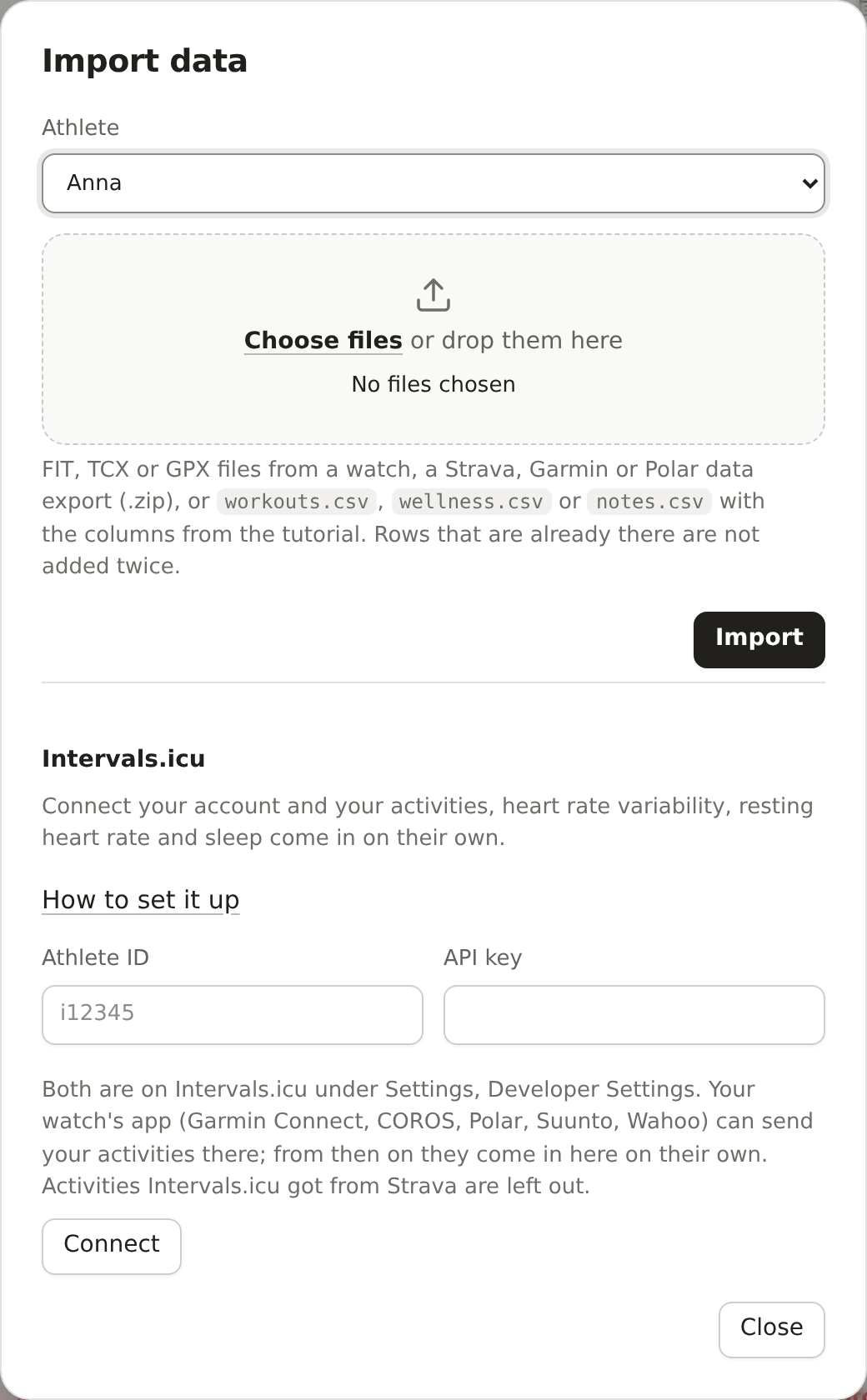
Rows and sessions that are already there are not added twice. A file the engine can't read is refused, and nothing is saved. Each file must be under 20 MB: for a bigger export, the admin uses coachint import (section 6).
Imports and notes are saved in the folder you opened. To keep the sample data as it is, make your own copy first with
coachint sample my-demo/and open that.
A new athlete with no files shows No data, and one with less than about 5 weeks of history shows Learning: before that, the baseline is not reliable and load signals stay quiet. If the same session arrives from several sources (say a FIT file, the Garmin export and Intervals.icu), it is counted once.
6. Bring your data from your watch (Garmin, Polar, Strava)
COACHINT never logs in to your Garmin, Strava or Polar account. Each athlete brings their own data, in one of these ways:
| You use | Best route | Daily updates? |
|---|---|---|
| Garmin | your Garmin Connect export (once), then Garmin connected to Intervals.icu (section 7) | yes, through Intervals.icu |
| Polar | the Polar connection (once you accept, data arrives every day), or your Polar Flow export | yes |
| Strava | your Strava archive (once); for daily data, connect the watch itself to Intervals.icu | no, only when you send a new archive |
| COROS, Suunto, Wahoo, … | Intervals.icu (section 7), or single FIT files | yes, through Intervals.icu |
| any app | single FIT, TCX or GPX files | no |
Why not Strava's or Garmin's API? Strava's terms don't allow AI use or showing data to a coach, and Garmin's API is open only to approved companies. An export is your own copy of your data, so you can share it.
If you are an athlete
Garmin Connect export:
- Sign in at garmin.com, open your account, then Data Management → Export Your Data and press Request Data Export.
- Garmin emails you a download link (it can take a few hours, sometimes days). Download the
.zip. - Send it to [ORGANISER NAME] privately (a shared folder or a file link, not a group chat), or, if it is under 20 MB, add it yourself with Import on your page.
Strava archive:
- On strava.com, open Settings → My Account → Download or Delete Your Account, then Request your archive.
- Strava emails you a
.zip. Send it as for Garmin, or import it on your page if it is under 20 MB.
From the Strava archive COACHINT keeps each activity's original file, plus its description, private note and perceived exertion, which become your comments and RPE.
Polar:
- [ORGANISER NAME] sends you a consent link. Open it, sign in to Polar Flow and accept.
- Your browser then lands on a page that may show an error or nothing at all: that is expected. Copy the whole address from the browser's address bar and send it to [ORGANISER NAME].
- If Polar asks you to accept data sharing, do it in Polar Flow under Settings.
From then on, your exercises (with their FIT files), sleep and Nightly Recharge (overnight HRV and heart rate) arrive every day. To stop, tell [ORGANISER NAME], who removes the connection and deletes the key. Data from this route is credited to Polar and shared only with your permission.
Instead of the connection, you can send your Polar Flow export (from account.polar.com, Download your data), like a Garmin export.
Single files: most apps can export one activity as FIT, TCX or GPX. Add them with Import on your page.
If you run the trial
Import an export or single files for an athlete (a folder like friends/marco, or coachint.db/marco in the trial's database, section 9):
coachint import friends/marco export_12345.zip      # Strava archive, Garmin or Polar export (recognised automatically)
coachint import friends/marco run.fit ride.tcx.gz   # single activity files
- An export keeps the last 365 days (
--days 0keeps everything). Importing the same export again adds nothing new. - From the Garmin export COACHINT keeps the activity summaries, the original FIT files, sleep, resting heart rate and HRV.
- One import may write at most 200 MB, and nothing is imported when the disk has less than 200 MB free (the free host has about 1 GB in all).
Polar, once: register a free client at https://admin.polaraccesslink.com with any Polar Flow account, note its redirect address, and set COACHINT_POLAR_CLIENT_ID, COACHINT_POLAR_CLIENT_SECRET and, if you registered one, COACHINT_POLAR_REDIRECT_URI (in ~/coachint.env on the host). Then for each athlete:
coachint polar connect friends/marco                    # prints the consent link to send to Marco
coachint polar connect friends/marco --code '<address>' # the address Marco's browser landed on
coachint polar sync friends/                            # every connected athlete; schedule it daily, like intervals sync
coachint polar disconnect friends/marco                 # when Marco leaves: revokes access, deletes the token
The token is saved owner-only with the athlete's data (polar.json in their folder, or in the database) and is never committed to Git. Polar's licence asks us to credit Polar as the source, to share an athlete's data only with their permission, and to delete the token when they leave.
Garmin, Strava and Polar exports were tested only on synthetic files so far: the first real export from a friend is the real check. If one is refused, keep the file and tell [ORGANISER NAME].
7. Connect Intervals.icu (no more manual files)
If you use Intervals.icu, COACHINT can pull your activities and wellness directly, with your own key. Your watch keeps syncing to Intervals.icu as usual, and COACHINT picks up the new data every 10 minutes. For Garmin users this is the way to get daily updates.
If you are an athlete
- In Intervals.icu, open Settings → Developer Settings.
- Note your athlete ID (it looks like
i12345) and create an API key. - In COACHINT, open the Menu, press Import, and fill in Athlete ID and API key under Intervals.icu. Press Connect.
- COACHINT checks the key with Intervals.icu and imports the last 180 days at once (it can take a minute). The window then says Connected as i12345 and when the last sync ran.
How to set it up under Intervals.icu in the Import window walks you through these steps one at a time, pointing at each box.
From then on new data comes in on its own, every 10 minutes; Sync now fetches it straight away. Disconnect forgets the key; tick Also remove what it brought first to delete the activities and wellness it imported too. The key is kept with your data, readable only by the server, and never shown again in the page. Treat it like a password; deleting it in Intervals.icu disconnects COACHINT as well.
If you run the trial
Athletes connect themselves in the app (above); nothing needs setting up on the server, and the app syncs everyone connected every 10 minutes while it runs (set COACHINT_SYNC_MINUTES to change it, 0 to turn it off). To connect someone from the command line instead, for each athlete (a folder with a profile.json, as in section 5, or coachint.db/marco in the database):
coachint intervals connect friends/marco    # asks for the ID and key, checks them online, saves them
coachint intervals sync friends/            # pulls new data for every connected athlete
- The key is saved with the athlete's data (
intervals.jsonin their folder, or in the database), readable only by you and never committed to Git. - The first sync pulls the last 180 days, which is enough history for the baseline. Later syncs fetch only the days since the last sync, plus a week to pick up late edits to comments, RPE and wellness.
- Activities become workouts (time, distance, heart rate, RPE, and the description as your comment). Wellness gives resting heart rate, HRV and sleep, and its comments become notes. A session that also arrives from a file or an export is counted once.
- Activities that reached Intervals.icu from Strava are skipped and never stored, because Strava's terms don't allow this use. Connect the watch to Intervals.icu directly (Garmin, COROS, Suunto, Polar, Wahoo…) so the data comes from the device.
Data synced from the command line shows the next time the page is loaded; the app's own syncs show at once.
8. Get the digest every day (Telegram or email)
Each morning, every athlete in the trial gets their digest by Telegram or email. Under each alert there are two buttons: Useful and Dismiss. Each tap is saved, so we learn which alerts actually help and can tune the rest.
If you are an athlete
Telegram (recommended):
- Open the trial bot ([ORGANISER NAME] sends you its link) and press Start.
- The bot replies with your chat id. Send that number to [ORGANISER NAME].
- From the next morning, your digest arrives in that chat. Tap Useful or Dismiss under each alert. The button you picked gets a ✓, and you can change your mind by tapping the other one.
Email: give your email address instead. Each alert has Useful and Dismiss links: a link opens a small page, and your choice is saved when you press Confirm.
In the app: every digest is also kept on your page, under the digest preview, in Past digests (hidden at first: tick it in Account, Tiles on the page): newest first, each with Useful and Dismiss under its alerts (the same answers as in Telegram or the email) and Open this week to see that week's signals and charts, and Delete this digest to take one out of the list (its text and your answers go; the Telegram or email message stays). A trainer or group member who sees your data reads your past digests too, but only you rate them. They are kept for about six months (the organiser can change it), are in Download my data, and go when you delete your account. If you don't want Telegram or email at all, say so: you can get the digest in the app only.
If you run the trial
1. Create the bot. In Telegram, talk to @BotFather, send /newbot, and copy the token it gives you.
2. List who gets what in a subscribers.json next to the database or group folder (start from subscribers.example.json in the repository):
{"subscribers": [
  {"athlete": "coachint.db/marco", "telegram": "123456789"},
  {"athlete": "coachint.db/sara", "email": "sara@example.com"}
]}
With folders, write "athlete": "friends/marco". An entry with no telegram or email, like {"athlete": "coachint.db/luca"}, gets the digest in the app only: every digest is kept on the athlete's page in Past digests anyway. Set how long digests are kept (sent ones and the copies in the app) with COACHINT_DIGEST_DAYS; 183 days by default.
3. Check the messages without sending anything:
coachint send subscribers.json --dry-run
4. Start the bot. It answers /start, saves the button taps, and sends the digests every day at the time you choose:
export COACHINT_TELEGRAM_TOKEN="123456:ABC..."
coachint bot subscribers.json --send-at 07:30
Keep it running on a computer that stays on; on the hosted setup (section 9) it runs as a service. Taps reach COACHINT only while the bot is running, and Telegram keeps unread taps for 24 hours. Schedule coachint intervals sync friends/ and coachint polar sync friends/ a little before the send time so the digest includes last night's data.
Claps, comments, connection requests and new messages that a person has not seen in the app go out on the same channels with coachint notify (names and what happened, never the text); run it from cron every few minutes:
coachint notify subscribers.json --dry-run
5. See what helps:
coachint feedback
It shows, for each type of alert, how many times it was sent, rated useful, dismissed, or left unanswered.
Email also needs an outgoing mail account (COACHINT_SMTP_HOST, COACHINT_SMTP_USER, COACHINT_SMTP_PASSWORD, …). The Useful and Dismiss links need a feedback page the athletes can reach: on the hosted setup, set COACHINT_FEEDBACK_SECRET and the site serves it; on your own computer, run coachint feedback-server. See the README for all the settings. Without the feedback page, emails go out without the links.
The subscriber list and the answers (kept in the database, or in
coachint-delivery.sqlitewith folders) hold personal data. Keep them on the trial machine; they are never committed to Git. Each digest goes out at most once a day; if sending fails, it is tried again on the next run.
9. Host the app for your friends (admin)
This section is for whoever runs the trial. The full step-by-step guide is deploy/README.md in the repository; here is the short version.
Where it runs
The recommended host is the alwaysdata free plan: no credit card, servers in Paris (the data stays in the EU), 1 GB of disk and SSH access. The same machine runs the web app, the daily sync tasks and the Telegram bot. The guide explains why the other free hosts don't fit, and a fallback on a computer at home.
In short: sign up, clone the repository over SSH with a read-only deploy key, install it with uv (uv sync --extra encrypt, no root needed), write ~/coachint.env with python3 ~/coachint/deploy/setup_env.py (it asks a few questions, generates the passwords and keys you leave blank and writes the file owner-only; save the admin password and database key it shows in your password manager), then add a site of type User program that runs deploy/serve.py on your database, with Force HTTPS turned on.
On your own server, with Docker or Podman. On a small rented server, a computer at home or a NAS, the repository's Dockerfile and compose.yaml do the same in a container, with the data on a volume that survives updates. Write the settings with python3 deploy/setup_env.py ./coachint.env, create the database with docker compose run --rm app coachint db migrate /app/samples /data/coachint.db, then start it with docker compose up -d. To reach it from the internet: on a cloud server, docker compose --profile https up -d adds a free HTTPS certificate for your domain; on hardware at home (a Raspberry Pi, a NAS), docker compose --profile tunnel up -d publishes it through a free Cloudflare Tunnel, with nothing to open on your router (Cloudflare then sees the traffic, and the site is down when the machine is off). The guide compares the two. Every coachint command in this section then runs as docker compose exec app coachint ..., with /data/coachint.db in place of ~/coachint.db. Step by step in deploy/README.md, section Containers. For a small cloud server at Hetzner (about 7 euros a month plus VAT, in Germany or Finland), deploy/HETZNER.md walks through everything from creating the server to HTTPS, backups and updates.
One database for the trial
On the host, all the trial's data lives in one file, ~/coachint.db: each athlete's profile, workouts, wellness and notes, their login, their own API key, their Intervals.icu and Polar connections, and the digest answers. It is encrypted with the COACHINT_DB_KEY that setup_env.py put in ~/coachint.env; keep a copy of it in your password manager, because without the key nobody can read the data, you included. The site refuses to start on an unencrypted database. Create it from the samples (or from the folders you already have), then add each friend:
~/coachint/deploy/run.sh coachint db migrate ~/coachint/samples ~/coachint.db   # or your folder, like ~/data
~/coachint/deploy/run.sh coachint add-athlete ~/coachint.db "Marco Rossi" --hr-rest 48 --hr-max 186
~/coachint/deploy/run.sh coachint db info ~/coachint.db                          # who is in it, how much data
add-athlete prints the athlete's id (marco-rossi): it is their user name and the name after coachint.db/ in every command, like coachint import ~/coachint.db/marco-rossi export.zip. Every command in this guide that takes a folder takes the database the same way. db migrate only reads the folders; keep them until the site works from the database. The file is created readable only by you; keep a copy elsewhere with coachint db backup ~/coachint.db ~/coachint-backup.db (encrypted with the same key; see deploy/README.md). A database made before encryption is converted with coachint db encrypt.
Passwords: one for you, one per person
- Your admin password is
COACHINT_ADMIN_PASSWORDin~/coachint.env. With any user name, it shows every athlete and lets you add new ones. Use at least 12 characters: the site refuses shorter passwords and the template's placeholder, and won't start on a public address without one. - Each friend and trainer gets their own login: open Admin and click Make password next to their name. The panel shows the user name (the athlete id,
marco-rossi, or the trainer's id) and a new random password, once. Over SSH the same works for athletes with:
~/coachint/deploy/run.sh coachint password ~/coachint.db/marco-rossi
It prints the user name (the athlete id, marco-rossi) and a new random password. Send both to Marco privately, with the site's address (https://ACCOUNT.alwaysdata.net). Run the same command again to give a new password: the old one stops working. Add --ask to type a password instead of generating one. A friend without a password cannot sign in.
The password is stored as a salted hash in the database (or in the friend's folder as login.json), owner-only. Wrong passwords are answered at about one a second, so guessing is slow.
The admin panel: trainers, groups and your LLM key
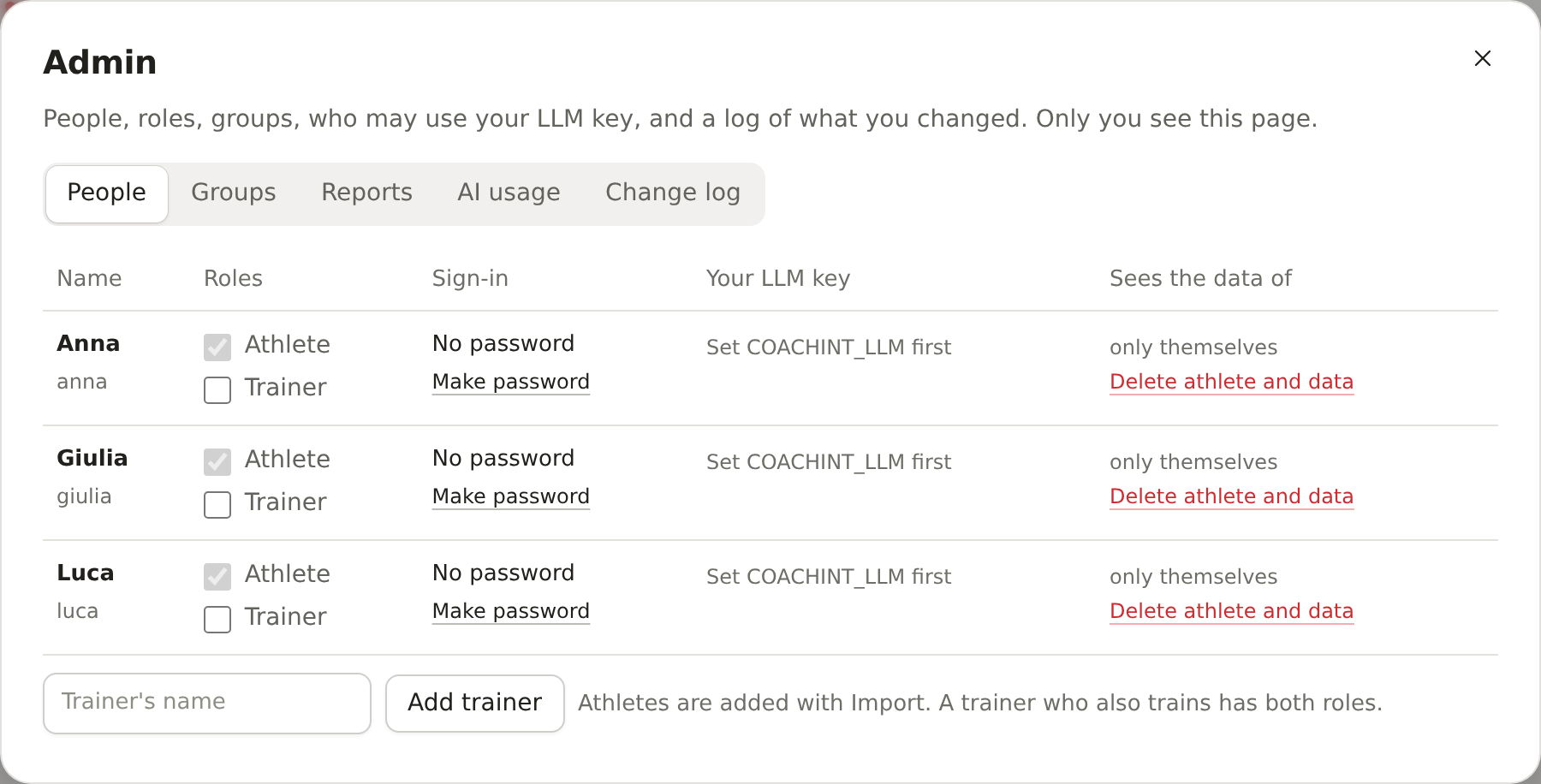
Admin in the Menu opens one page with everything about people, in tabs (People, Groups, Reports, AI usage, Change log; a number on a tab counts what waits for you):
- People: each athlete and trainer, their roles, whether they have a password (New password, Block sign-in), how many questions a month they may ask on your LLM key, and whose data they see.
- Add trainer: type a name; the trainer gets a password right away. Athletes are added with Import.
- Roles: tick Athlete, Trainer or both. An athlete who also coaches gets Trainer ticked and keeps their own data; a trainer who starts training gets Athlete ticked and an empty data folder of their own (they can also do it themselves, from My training), keeping their password, keys and coach chats. Someone with their own data stays an athlete (Delete athlete and data removes both), and everyone keeps at least one role.
- Groups: add members and the trainers who follow the group. Tick Members can see each other for a group that shares (for example friends who train together). Each member's pill says whether they agreed (shares) or not (hasn't agreed): they decide on their own Sharing page, you can't decide for them.
- Your LLM key: a number of questions a month lets that person's chat use your
COACHINT_LLMmodel on your key. Over the cap their chat goes back to the open model until the next month. Empty means off. - Delete athlete and data: the link under a person's name, for a friend who leaves. You type their id to confirm, then it erases their workouts, notes, password, saved API key and Polar and Intervals.icu connections (their Polar access is revoked first), the digests sent to them, and their place in every group. It cannot be undone. If they get the daily digest, also remove them from
~/subscribers.json; copies of the database you made earlier still hold their data until you delete them. - Change log: every change made here, in the page's language, newest first, with the time: people added or deleted, roles, passwords made or blocked, groups, grants. It records names and ids only, never passwords, keys or health data.
Each friend's Sharing page shows their groups, who can see their data, the switches to share with a group's trainers and with its members, Download my data (a zip of CSV files with everything kept about you) and Withdraw consent and delete my account, which erases your account and data after you type your id. It lists a group's other members only when you can see them anyway (they and you both agreed, or you are the group's trainer), so a group is never a way to find out who else is in it.
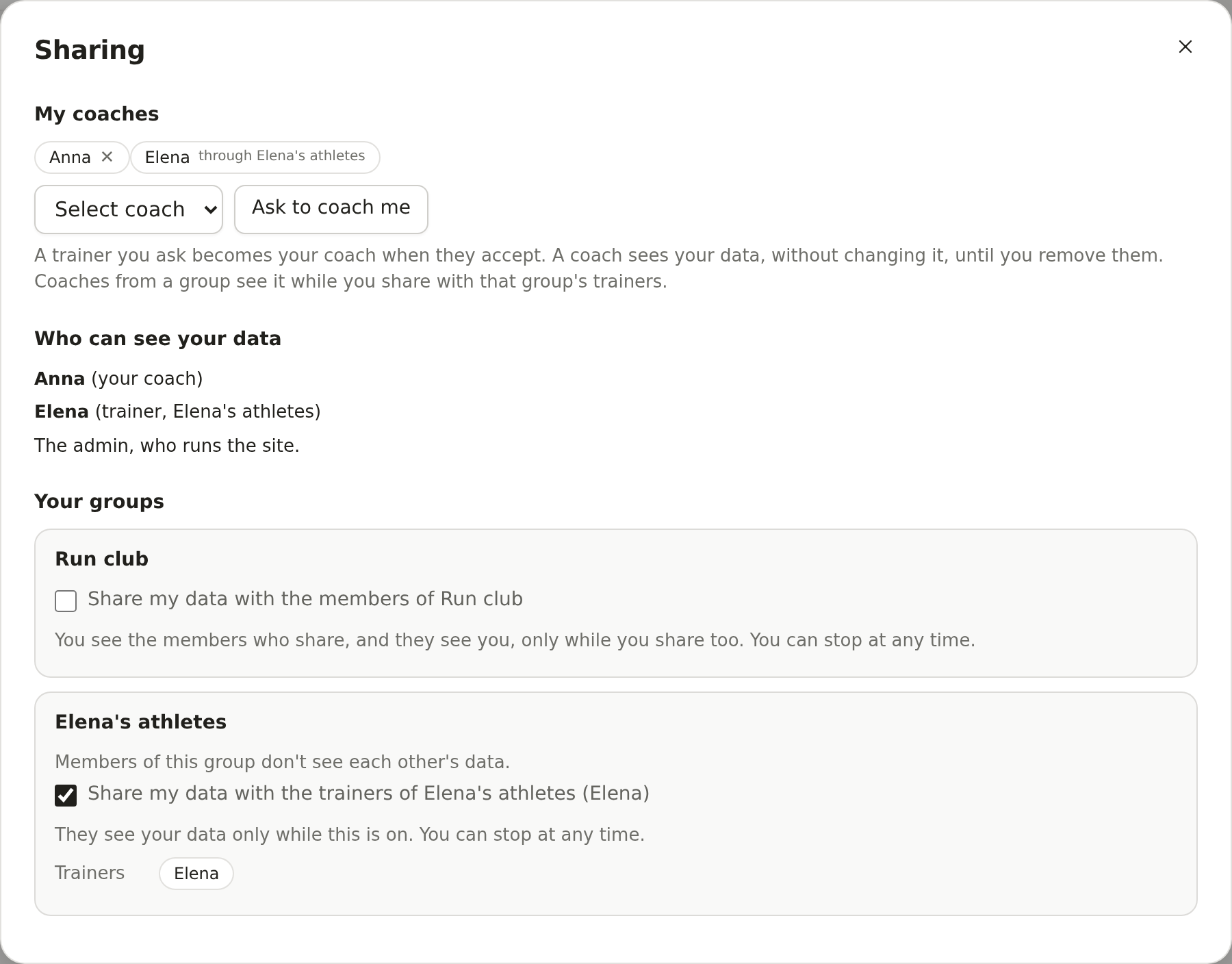
My coaches. An athlete can have more than one coach. At the top of Sharing, My coaches lists them: the trainers you picked yourself, and the trainers of your groups you agreed to share with (through the group's name). Choose a trainer in Select coach (the trainers in a group with you, and those who made themselves discoverable) and press Ask to coach me: once they accept, on their People page, that is your consent for them to see your data, without changing it, and they find you under My athletes, with the coach chat. The ✕ next to a coach you picked removes them, and they stop seeing your data at once; the ✕ next to a request still waiting takes it back. Only you can add or remove your coaches; the admin sees them in the Admin panel (Coaches they picked) but cannot change them.
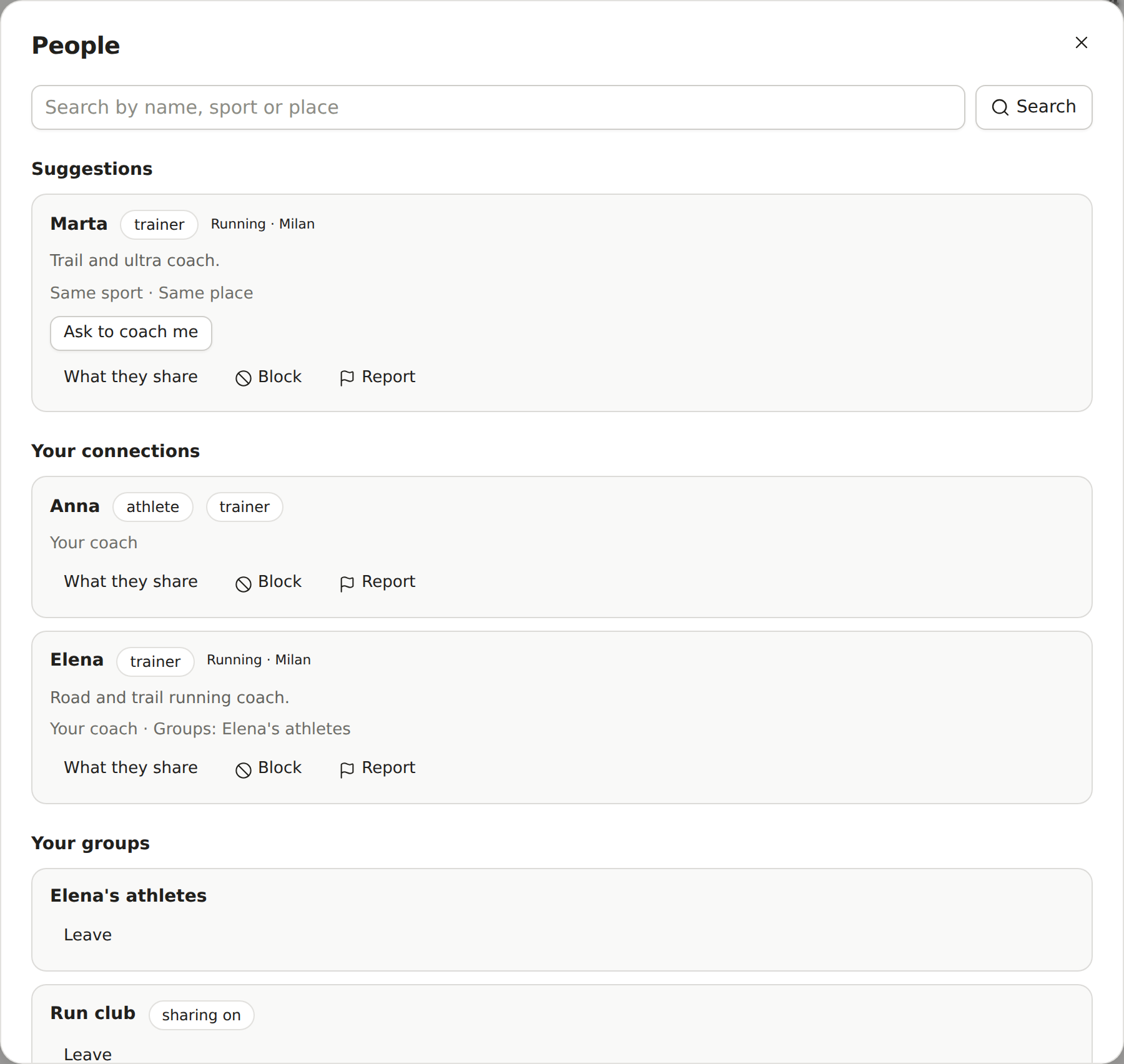
People: find athletes and trainers, and connect. People in the Menu is where athletes and trainers find each other. Your profile there (sport, place, a line about you) is private until you tick Discoverable and press Save profile; then others can find you, seeing only that card, never your training. Type a name, sport or place and press Search: you find discoverable people only. Next to each one, Ask to coach me asks a trainer to coach you, Offer to coach (for trainers) offers to coach an athlete, and Invite to group invites an athlete into a group you run. Nothing happens until the other person presses Accept under Waiting for you: accepting a coach is your consent for them to see your data, and accepting a group invitation shares with its trainers (and its members, if sharing is on), which you can stop on Sharing. Decline and Withdraw drop a request. Suggestions lists up to five discoverable people you share a group, a sport or a place with. People in a group with you can send you a request even while you are not discoverable. Make group starts a group of your own: a trainer follows it as its trainer, an athlete's has sharing on, to invite training partners; Leave takes you out of a group, and its maker can Delete group. In the online demo, play Anna to accept the trainer Elena's offer.
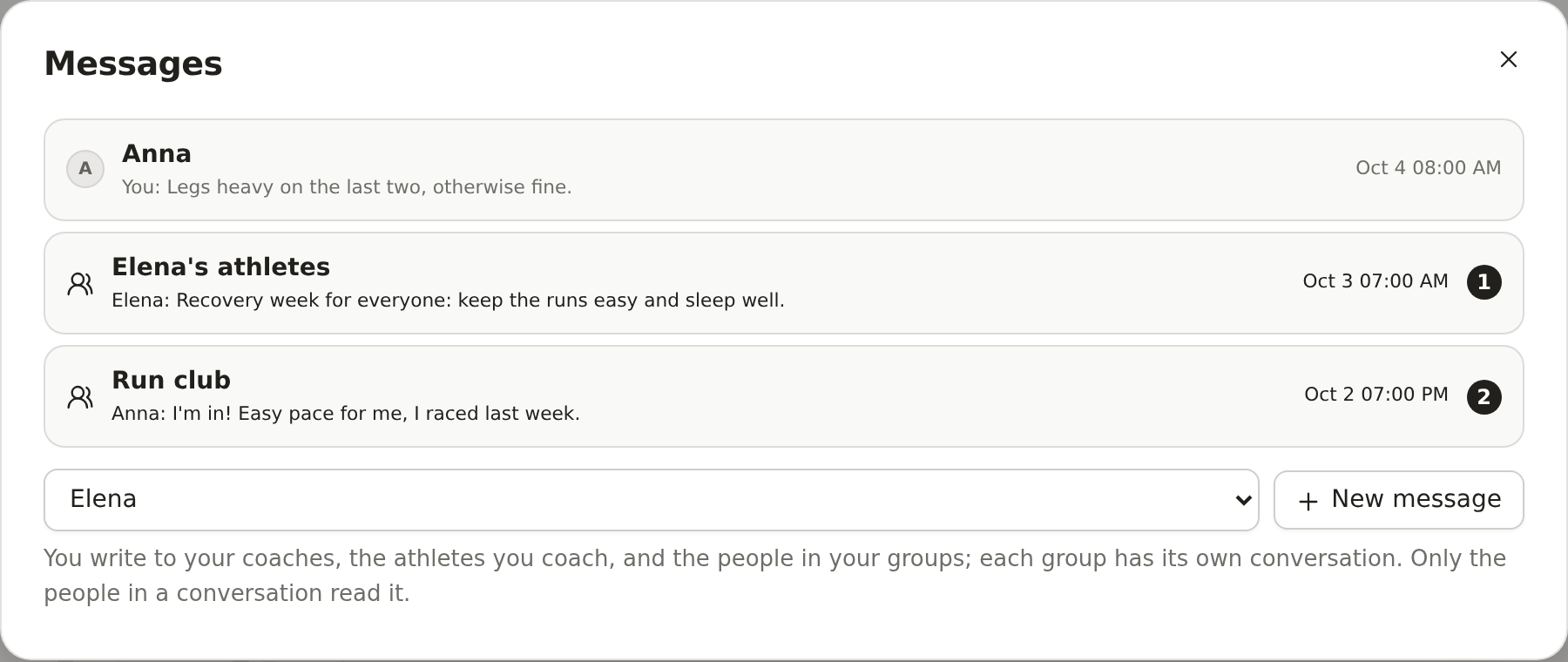
Messages: write to your coaches, athletes and groups. Messages in the top bar (on a phone, in the bar at the bottom) lists your conversations, newest first; the number on it says how many messages you have not read. Each of your groups has one conversation for its members and trainers. To write to one person, pick them under the list and press New message: you can write to people you are connected with (your coaches, the athletes you coach, members you share with) and to anyone in a group with you. Type and press Send (or Ctrl+Enter). Only the people in a conversation read it; leaving a group hides its conversation. In the online demo, play Giulia to read the Run club and her coach Anna.
Who can do what
| Athlete | Trainer | Admin | |
|---|---|---|---|
| See their own signals, charts, notes and digest | ✓ | ✓ (if they also train: My training) | ✓ (everyone) |
| See other athletes | members of a sharing group who agreed, once they agree too | athletes who picked them as a coach, and members of the groups they follow who agreed | ✓ |
| Add notes, import files | only on their own page | only on their own page | for everyone |
| Ask questions in the chat | about the data they see | about the data they see | about anyone |
| Save their own API key for the chat | ✓ | ✓ | ✓ |
| Pick or remove their own coaches | ✓ | if they also train | – |
| Manage people, groups, passwords, key grants | – | – | ✓ |
Sign-up with Google or Auth0, and the terms of use
Instead of making a password for each friend, you can let them sign up on their own: on the sign-in page with a user name and password (on by default, nothing to set up), with their Google account, with Auth0 (free plan, EU region), or with any other OpenID Connect provider.
- Google (
deploy/GOOGLE.md, about 10 minutes, free): in Google Cloud, describe the app on the consent screen, create an OAuth client of type Web application with the redirect URIhttps://ACCOUNT.alwaysdata.net/auth/callback, and copy its client id and secret into~/coachint.env(deploy/setup_env.pyasks for them). While the app is in Testing, only the Google accounts you list as test users (up to 100) can sign in: add your friends' addresses there. - Auth0 (
deploy/AUTH0.md), for friends who prefer an email and password: create an Auth0 application with the same callback and copy its domain, client id and secret into~/coachint.env. Both buttons can be on the page at once.
Both need a random session secret in ~/coachint.env. Passwords keep working next to them.
- With an SMTP server and
COACHINT_PUBLIC_URLin~/coachint.env, sign-up asks for an optional email (confirmed by a link) and the sign-in page offers Forgot your password?. For someone without a confirmed email, give a new password with New password in Admin (orcoachint password). - Someone who signs up becomes an athlete in no group, with an empty page. In Admin their row says Signs in with Google (or Auth0); make them a trainer, add them to groups, Block sign-in or delete them as anyone else. Make password after a block lets them in again.
- Approving new accounts. By default (
COACHINT_SIGNUP=approve) someone who signs up waits: they see Waiting for approval until you press Approve on their row in Admin (the panel says when someone is waiting). Delete athlete and data turns them away. If they confirmed an email, COACHINT writes to say they are in.COACHINT_SIGNUP=onskips the approval. - At most
COACHINT_SIGNUP_LIMITpeople (20 by default) can sign up on their own;COACHINT_SIGNUP=offcloses sign-ups and keeps the people already in. - Terms of use: everyone but you accepts them before seeing data, and again when their version changes; the admin panel shows which version each person accepted. Each acceptance also writes a line in the change log, kept after a person is deleted as proof of their consent. The text in the code is a draft reviewed for the main GDPR and consumer-law points but not by a lawyer: fill in the parts in [square brackets] (who runs the trial, the host, how long data is kept) and have it checked. To use your own text, put
terms_en.mdandterms_it.mdin a folder and setCOACHINT_TERMS_DIR; change the version line at the top to ask everyone again. - Only the Auth0 id and a display name are kept, never the email address. Signing out ends the session on the site, not at Auth0. A friend who already has a password and then uses Auth0 gets a second, empty account: give each person one way in.
Share the phone app with the trial
The phone app is the hosted site itself: friends install it from their browser (section 2, A), so there is nothing to build, no app store, no store account and no fee, and when you update the site every phone gets the new version the next time the app opens. It only needs the site on https (alwaysdata's Force HTTPS, Caddy or the tunnel). To invite someone, send them privately the site's address, their user name and password (or tell them to sign up with Google), and section 2 of this tutorial. Details in deploy/README.md, Phone app.
Some friends prefer an app file on Android. You can build one from the site with Google's free Bubblewrap tool and send the APK privately, or offer it through Google Play internal testing (one-time Play developer fee); deploy/README.md, Android app file, has the commands and the two settings that remove its address bar. On iPhone, the home-screen app is the way for the pilot: an App Store or TestFlight build needs a paid Apple developer account and its own sign-in work.
Before real friends' data goes on it
The security review is in deploy/SECURITY.md. What it leaves open, and what to do:
- Ask each friend for consent to store their health data on the host, and, if you turn on an LLM, to send their notes and figures to the LLM provider (section 10). The EU-hosted or open model avoids the second point.
- A note can try to steer the LLM. Numbers in the digest are still checked against the data, but labels can be skewed.
- Data on the host is encrypted with
COACHINT_DB_KEY(keep that key in your password manager; without it the data is lost), but anyone in the account can read the key: protect the alwaysdata account with two-factor authentication and keep the admin password to yourself. - Keep Force HTTPS on, since the password travels with every request.
- Email feedback links work for 30 days: anyone a digest is forwarded to can rate its alerts in that time (nothing else).
- Backups on the free plan last only a few days: keep your own copy of
~/dataand the feedback file. When a friend leaves and you delete them in Admin, delete the copies you made earlier too. ~/coachint.db,~/coachint.envand~/subscribers.jsonhold secrets or personal data: keep them owner-only and out of Git (the database is created that way).
To update the code: cd ~/coachint && git pull && ~/.local/bin/uv sync --locked --no-dev --extra encrypt (add --extra anthropic if you installed it), then restart the site (and the bot) from the alwaysdata panel.
10. Run it with an LLM (Claude or OpenAI)
Without an LLM, everything works offline: notes are read with keyword rules. With an LLM, notes are read by the model, which understands phrasing the rules miss. The model also writes a short opening line for the digest and answers questions in the chat (section 3). Numbers are checked against the data: if the model's digest line cites a number that isn't in the data, the line is dropped automatically; a chat answer is shown with a warning instead.
You can use Anthropic (Claude) or OpenAI (GPT) with your own API key. Pick one; the steps are below. On the hosted setup, put the same variables in ~/coachint.env instead of typing export.
Option A: Anthropic Claude
Step 1: get an API key
- Go to https://console.anthropic.com and sign in (or create an account).
- Open Settings → API Keys, then Create Key. Copy the key, which starts with
sk-ant-. - Add a small amount of credit under Billing. The demo uses very little.
Your key is like a password. Don't put it in files you share or commit to Git.
Step 2: install the Anthropic SDK
uv sync --extra anthropic
Step 3: set the key and start the app
macOS / Linux:
export ANTHROPIC_API_KEY="sk-ant-..."
export COACHINT_LLM=anthropic
coachint app samples/ --llm
Windows (PowerShell):
$env:ANTHROPIC_API_KEY = "sk-ant-..."
$env:COACHINT_LLM = "anthropic"
coachint app samples/ --llm
The terminal prints Using model: claude-opus-5-5, and the LLM (claude-opus-5-5) switch appears in the Menu. Turn it on: the page reloads with the notes read by Claude and an opening line at the top of the digest.
Choosing the model
The default is Claude Opus 5.5 (claude-opus-5-5). To try another model, set COACHINT_MODEL before starting the app, for example:
export COACHINT_MODEL=claude-sonnet-5-5
Option B: OpenAI
Step 1: get an API key
- Go to https://platform.openai.com and sign in (or create an account). A ChatGPT subscription does not include API access: the API is billed separately.
- Open API keys (under your profile or Dashboard), then Create new secret key. Copy the key, which starts with
sk-. - Add a small amount of credit under Settings → Billing. The demo uses very little.
Step 2: set the key and start the app
Nothing extra to install. macOS / Linux:
export OPENAI_API_KEY="sk-..."
export COACHINT_LLM=openai
coachint app samples/ --llm
Windows (PowerShell):
$env:OPENAI_API_KEY = "sk-..."
$env:COACHINT_LLM = "openai"
coachint app samples/ --llm
The terminal prints Using model: gpt-5-mini, and the LLM (gpt-5-mini) switch appears in the Menu.
Choosing the model
The default is gpt-5-mini, which is fast and cheap. To use another model your account has, set COACHINT_MODEL, for example:
export COACHINT_MODEL=gpt-5
What is sent to the model provider
The chat sends its questions to whichever model answers (your own key, the admin's, or the open model; see section 3). When the switch is on, the app sends Anthropic or OpenAI each note text and the digest text (signal explanations, numbers, race name). Each chat question sends the question, the last few questions and answers, and a summary of that athlete's data: weekly totals, sessions of the last 4 weeks, daily resting HR, HRV and sleep of the last 2 weeks, notes and the next race. The chat uses a model whenever one is set up, even with the switch off. Scan a label sends the label photo (made smaller in your browser) to the same provider as the chat (its cheaper model), and nothing else. Look up sends only the barcode digits to Open Food Facts, and a race Search only the words typed to Wikidata. Workout files and raw data are not sent. When the switch is off, nothing leaves the machine. For real athletes, use the LLM only with their consent (see the MVP document, §14, and section 9).
Alternative: an open model
To keep everything local, or hosted in the EU, you can use an open model behind an OpenAI-compatible endpoint, such as Ollama:
ollama pull qwen2.5:0.5b
export COACHINT_LLM=open COACHINT_OPEN_BASE_URL=http://localhost:11434/v1 COACHINT_OPEN_MODEL=qwen2.5:0.5b
coachint app samples/ --llm
Who pays for chat questions (admin)
On the hosted app, put these in ~/coachint.env:
COACHINT_OPEN_BASE_URLandCOACHINT_OPEN_MODEL(andCOACHINT_OPEN_API_KEYif the host needs one): the open model answers every friend who has no key of their own.COACHINT_PLAN_WEEKS(optional): the longest training plan, in weeks. Empty means 12; it can go up to 52.COACHINT_CHAT_TOKENS(optional): the longest chat answer, in tokens. Empty means 1024; raise it if answers stop mid-sentence, lower it to spend less. It applies to the open model and Claude; OpenAI's models keep their own limit.- In Admin, the Your LLM key column: people with a number there use your
COACHINT_LLMmodel instead, on your key, up to that many questions a month. COACHINT_AI_DAILY_ATHLETEandCOACHINT_AI_DAILY_COACH(optional): AI questions a day per person on your keys (the open model and your model, never their own key). Empty means 10 for an athlete and 20 for a coach; 0 means no limit.COACHINT_AI_BUDGET(optional): what the site's keys may spend in a month, in US dollars. Admin > AI usage shows every call with its tokens and estimated cost, warns at 50% and 80%, and once the budget is reached only people's own keys answer until the next month.COACHINT_AI_PRICESadds the price of a model the app doesn't know, likemistral-small-3.2=0.15/0.35per million tokens in and out.
11. The same thing from the terminal
coachint digest samples/anna --as-of 2026-10-04    # one athlete's digest
coachint group samples/ --as-of 2026-10-04         # group ranking
coachint chat samples/anna --as-of 2026-10-04      # ask about one athlete's data (empty line stops)
coachint import friends/marco export.zip           # Garmin, Strava or Polar export, or .fit/.tcx/.gpx files
coachint intervals sync friends/                   # pull new Intervals.icu data
coachint polar sync friends/                       # pull new Polar data
coachint password friends/marco                    # Marco's own login to the hosted app
coachint add-athlete friends/ "Marco Rossi"        # a new athlete
coachint db migrate friends/ coachint.db           # move the athlete folders into a database
coachint db encrypt coachint.db secure.db          # encrypted copy with COACHINT_DB_KEY (db decrypt: back)
coachint db backup coachint.db backup.db           # copy of a database in use, same key
coachint db info coachint.db                       # who is in a database
coachint send subscribers.json --dry-run           # the day's digests, without sending
coachint feedback                                  # which alerts were useful
digest, group, chat, send and bot also accept --llm. A database works wherever a folder does: coachint group coachint.db, coachint digest coachint.db/anna.
12. Troubleshooting
| Problem | Fix |
|---|---|
| The browser keeps asking for the password | Check the user name (your first name in lower case, as [ORGANISER NAME] sent it) and the password. After several wrong tries, wait a moment. Still stuck: ask [ORGANISER NAME] for a new password. |
| I see only my own page, not the group | That is how a friend's login works. Only the admin sees the group. |
| My page says No data | Nothing has been imported for you yet: send your export (section 6) or connect Intervals.icu (section 7). |
| My page says Learning | You have less than about 5 weeks of data. Signals improve as data comes in; an older export fills the gap at once. |
Address already in use |
Another program is using port 8000. Run coachint app samples/ --port 8080 and open http://localhost:8080. |
No athletes in … |
Point the app at the group folder or the database, not at a single athlete. |
… has no athlete … |
The name after coachint.db/ is the athlete id; coachint db info coachint.db lists them. |
| Everything is Stable with my data | Check the week in the top bar (press Latest). Signals need about 5 weeks of history before that date. |
| Files must be under 20 MB | Send the export to the admin, who runs coachint import on the host. |
| An export is refused | Check it is the .zip from Garmin, Strava or Polar, not unpacked. If it still fails, keep the file and tell [ORGANISER NAME]: exports were tested only on synthetic files. |
| The server is almost out of disk space | The admin frees space on the host (old exports, backups) and imports again. |
The athlete has not accepted Polar's data-sharing consents yet |
In Polar Flow, open Settings and accept data sharing, then sync again. |
--llm needs COACHINT_LLM=… |
Set COACHINT_LLM=anthropic, openai or open before starting the app. |
COACHINT_LLM=openai needs OPENAI_API_KEY |
Set the key in the same terminal window, then start the app again. |
No module named 'anthropic' |
Run uv sync --extra anthropic. |
No athlete in friends/ is connected to Intervals.icu |
Run coachint intervals connect friends/<name> first, then sync the group folder. |
| An Intervals.icu activity is missing | It probably came from Strava, which is skipped. Connect the watch to Intervals.icu directly and sync again. |
The bot doesn't answer /start |
coachint bot must be running, with COACHINT_TELEGRAM_TOKEN set. |
telegram is not configured or email is not configured |
Set COACHINT_TELEGRAM_TOKEN, or the COACHINT_SMTP_… settings, before coachint send. |
| Tapping a button says This button has expired | The digest was sent from another feedback file, or to another chat. Use the same --db for send and bot. |
| There is no Install app button | It shows only on the hosted site over https, in a browser that can install it, and not once the app is installed. On Android use the browser's ⋮ menu > Install app; on an iPhone open the link in Safari (not inside another app) and use Share > Add to Home Screen. |
| The hosted site won't start | Read the site's log in the alwaysdata panel: the admin password is missing, shorter than 12 characters, or still the template's placeholder. |
| The LLM switch is on but nothing changes | Check the terminal (or the site's log) for a warning, for example an invalid key, no credit, or a model name your account can't use. The app keeps working with keywords and shows no opening line. |
COACHINT is a PoC. Signals are prompts to look closer, not diagnoses. If pain or illness persists, see a doctor or physiotherapist.